Maintain data integrity and keep dependencies intact by moving metadata and data together in a single work item. In Lifecycle Center, you can move configuration data between environments using the same commit and deploy flow that you use for metadata.
Required Editions
| Available in: Lightning Experience |
| Available in: Professional (API access required), Enterprise, Performance, Unlimited, and Developer editions |
When you commit data, Lifecycle Center stores the records as .csv files in your source control repository. Files are stored in a folder, usually dataset/. Each object has its own file, named with the object’s API name. For example, dataset/Account.csv.
Example repository structure:
<root>/
      dataset/
      Account.csv
      Contact.csv
      CustomObject__c.csv
Lifecycle Center combines and applies updates from multiple commits to the .csv files based on these user actions.
| User Action | Lifecycle Center Action |
|---|---|
| Add a new record | Adds a row to the .csv file. |
| Add new columns | Adds columns to the header. Existing rows get empty values in the new columns. |
| Commit fewer columns than before | Updates only the specified columns. Other columns in the file remain unchanged. |
| Update an existing record | Replaces the row. The latest commit overwrites all previous values in that row. |
Data Commit and Deployment Considerations
Review these requirements before you commit and deploy data:
- Use a unique External ID field to match records and prevent duplicates in the target org.
- Make sure that your External ID field contains only unique values. If the same ID appears twice in a file, the last processed row overwrites the first.
- Don’t leave the External ID field blank. Every record in your commit must have a valid identifier.
- Lifecycle Center supports up to 1,000 records per object type and 10,000 records total per commit.
- Save the data as UTF-8 .csv with comma (,) as the delimiter. Use the standard CSV escaping for fields that contain quotes or commas.
View Data Changes in DX Inspector and Lifecycle Center
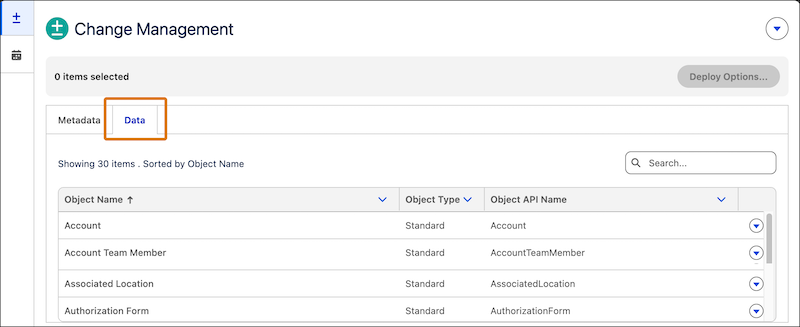
- Data to commit: In your development environment, open Change Management from DX
Inspector. Then, go to the Data tab to see the data changes available for commit.
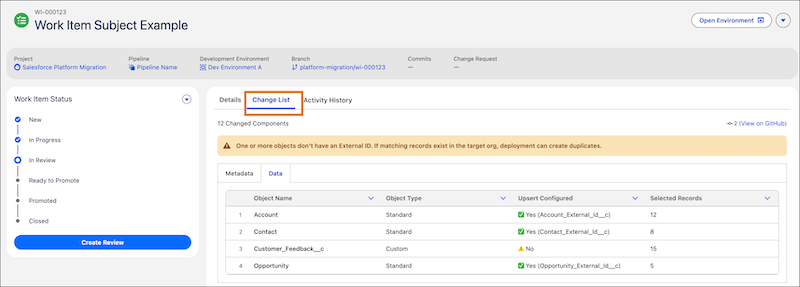
- Data to deploy: Open the work item record in Lifecycle Center, then
click Change List to see the data changes included in that work
item for deployment.