
Use work items to track the progress of changes related to specific objectives, such as user stories or issue fixes. Work items help teams manage changes and releases by providing visibility into the status and progress of changes.
Required Editions
| Available in: Lightning Experience in Professional (API access required), Enterprise, Performance, Unlimited, and Developer Editions |
| Not Available in: Government Cloud Plus. Contact your Salesforce account executive for more details. |
| Not available in: EU Operating Zone. EU Operating zone is a special paid offering that provides an enhanced level of data residency commitment. Lifecycle Center is supported in orgs in the EU that aren’t part of EU OZ, per standard product terms and conditions. |
| User Permissions Needed | |
|---|---|
| To create, edit, and assign work items: | Lifecycle Center User |
Before creating and assigning work items, create and activate your project pipeline. See Build Your Pipeline.
Alternatively, you can create a work item directly from DX Inspector. See Develop and Deploy with DX Inspector.
-
From the Work Items tab, click New.
You can also create a work item from the Projects or Home tab. Select the project for which you’re creating the work item, then click New Work Item.
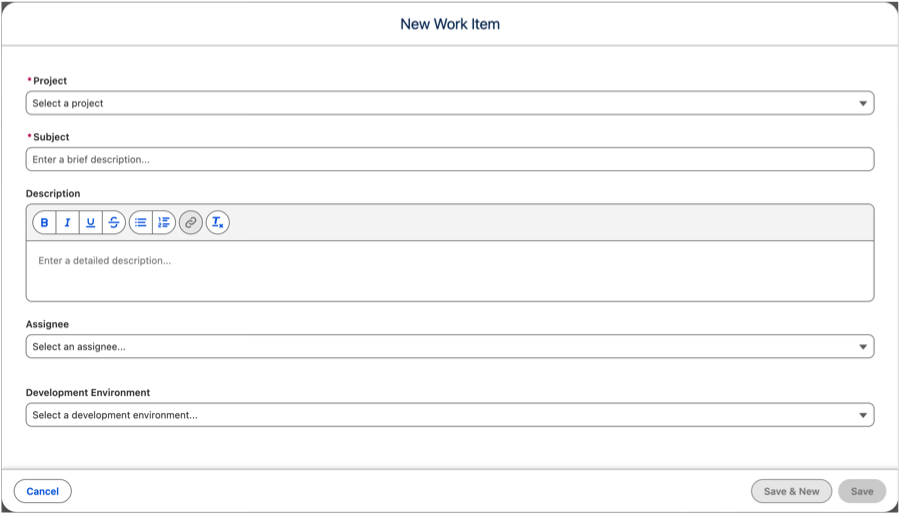
- Select the Lifecycle Center project for which you’re creating the work item.
- In the Subject field, specify the objective or the problem.
-
In the Description field, enter additional information, including details about the changes and acceptance criteria.
Lifecycle Center uses the first 255 characters of the description to identify this work item in the source control repository.
- (Optional) Assign the work item to a team member.
-
(Optional) Select a connected development environment for this work item.
If you don’t select a development environment, the work item isn’t assigned to any environment. However, when you commit this work item for the first time, the DX Inspector environment is automatically associated with it, and a branch is created. A branch is also created when the work item moves to the In Progress status. You can add a development environment from the Pipelines tab.
-
Save your work item or create another.
The work item appears in the Work Items tab, with the status New.
- On the Work Items tab, click Move to In Progress to inform your team members that you’re working on this work item.
Both you and your team members can create additional work items as the project progresses.
The basic setup for Lifecycle Center is complete and you can start building in your development environment. See DX Inspector.
Want to automate work item tasks instead of performing them manually? Use Lifecycle Center MCP tools to manage work items conversationally through your IDE, or use Lifecycle Center skills. See Manage the Work Item Lifecycle with DevOps Center MCP Tools and Skills and DevOps Center Skills.