
Commit changes to your source repository directly from the Change Management tab. After you make the changes, decide which changes to include for the work item and commit them to the Lifecycle Center project’s source control repository.
Required Editions
| Available in: Lightning Experience |
| Available in: Professional, Enterprise, Performance, Unlimited, and Developer Editions |
| User Permissions Needed | |
|---|---|
| To commit changes: | Customize Application in your development org |
| To commit changes: | Lifecycle Center User in Lifecycle Center Hub org |
Connect to Lifecycle Center
Connect your development environment (sandbox, scratch org, or Developer Edition org) to your Lifecycle Center project.
Make sure that Lifecycle Center is accessible from the App Launcher. See Access Lifecycle Center.
- Log in to your sandbox, scratch org, or Developer Edition org.
-
Click
 on DX Inspector to open the DX Inspector panel.
- From the DX Inspector panel, open the Change Management tab.
-
Click
 , and then select Connect Lifecycle Center.
This action authenticates the connection to the Lifecycle Center source repository. On successful authentication, all uncommitted changes are listed.
, and then select Connect Lifecycle Center.
This action authenticates the connection to the Lifecycle Center source repository. On successful authentication, all uncommitted changes are listed.
Select Metadata to Commit
Metadata defines the structure of your Salesforce org, such as custom objects, fields, and layouts.
If there are no work items, create a work item in DX Inspector or Lifecycle Center.
- On the Metadata tab, select the metadata files to commit.
- (Optional) Add metadata manually. See Add Metadata Manually.
-
(Optional) To view relationships for a selected metadata component, click the down arrow
icon, then select View Dependencies....
The Metadata Dependencies window shows the metadata relationship in a hierarchical tree.
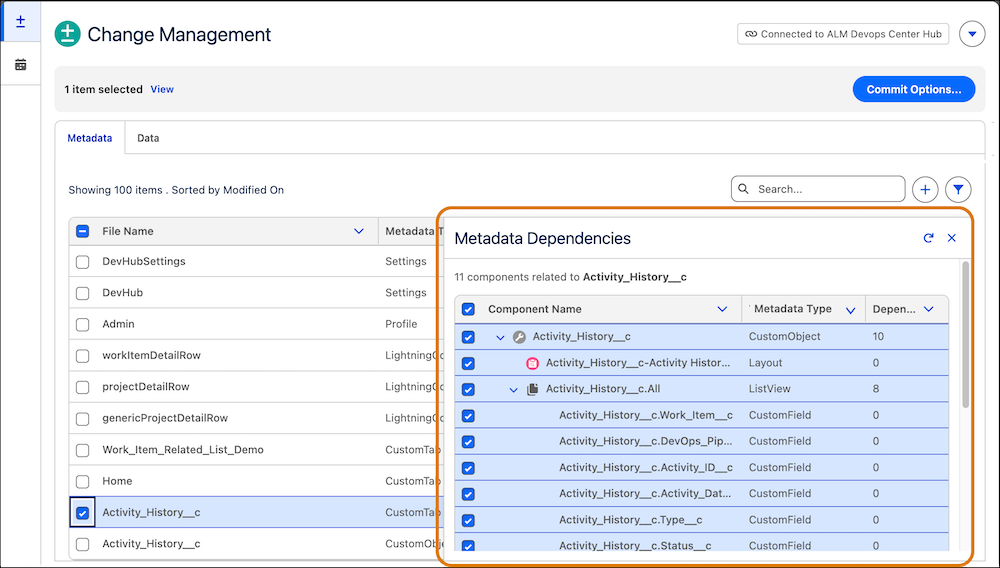
- (Optional) Select related metadata to include in the commit.
Select Data Records to Commit
Configuration data includes the records that your app needs to run, such as custom settings and price book entries. Map these records with a unique External ID so Lifecycle Center identifies and matches them correctly in the target environment.
- On the Data tab, find the data object that you want to commit.
-
In the data object row, click the down arrow () icon, and then select Select Associated
Records....
-
To configure the selected object, complete these steps:
- Select a unique External ID to map records and prevent duplicates.
- (Optional) To include only specific fields, click Edit Fields.... By default, the required fields are selected.
- (Optional) To commit a subset of records, click Add Filters, and define your filter criteria.
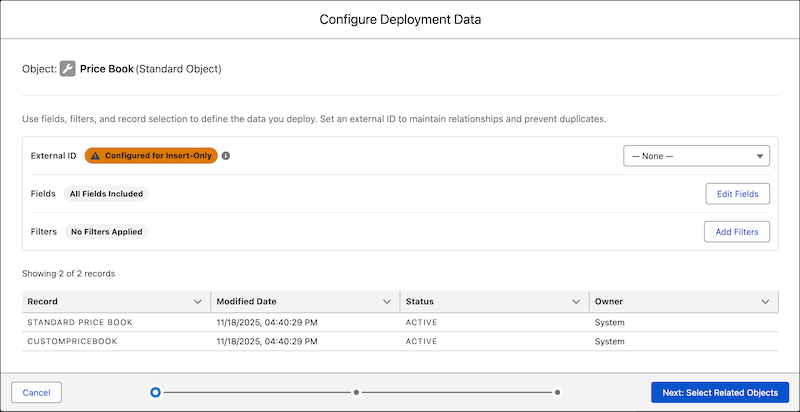
-
Click Select Related Objects.
Related parent and child objects are listed. Parent objects are selected by default.
-
On the Child Objects tab, select a unique External ID to map records and prevent
duplicates.
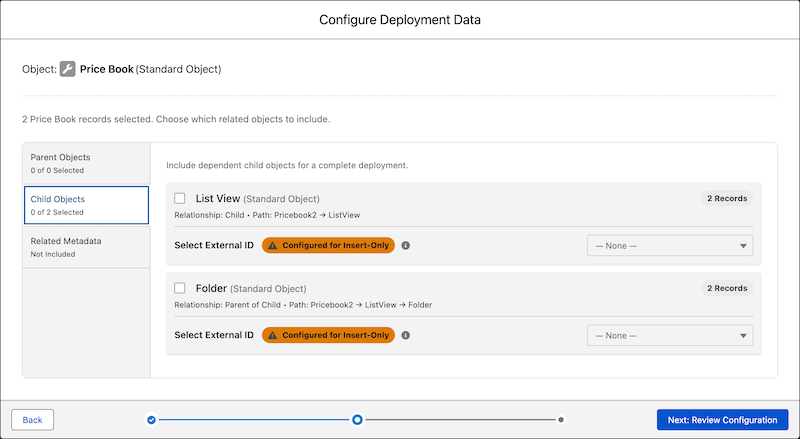
- Select the records to commit, then click Review Configuration.
-
(Optional) In the data object row, click the down arrow ( ) icon to download or remove the records.
- Review the list of filtered records and click Add.
Commit Metadata and Data
Committing changes links your selected metadata and data changes to a work item. Lifecycle Center stores committed changes in the repository branch created when the work item moved to the In Progress status.
- On the Change Management tab, click Commit Options….
-
Select a Lifecycle Center project.
Only work items in the project with the statuses In Progress, In Review, and Ready to Promote appears.
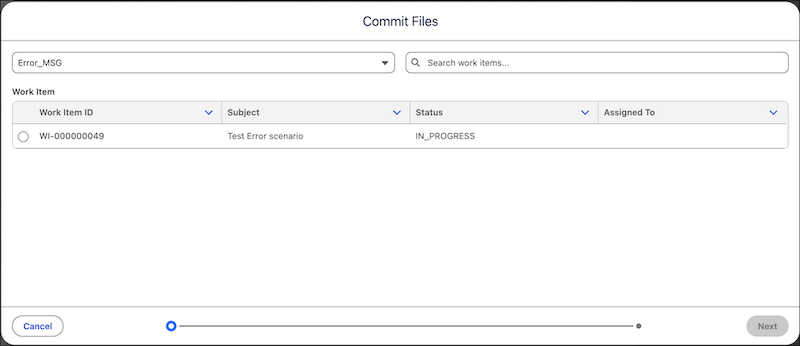
- Select a work item, and then click Next.
-
Add a commit comment that clearly describes the changes.
The comment helps in identifying your commit, especially when the work item has multiple commits.
-
Review your changes, and then click Commit.
If you configured a .forceignore file, metadata listed in that file is excluded from the commit.
When a commit succeeds, create a change request in DX Inspector. If your commit fails, see Stalled Commits.