
Actions you add to the global publisher layouts appear on pages such as the Home and Chatter pages. They also appear on the action bar and action menu on the Feed and People pages in the Salesforce mobile app.
Required Editions
| Available in: both Salesforce Classic and Lightning Experience |
| Available in: Group, Professional, Enterprise, Performance, Unlimited, Contact Manager, Database.com, and Developer Editions |
| User Permissions Needed | |
|---|---|
| To create actions: | Customize Application |
| To customize action layouts and page layouts: | Customize Application |
| To view page layouts: | View Setup |
Arrange the actions so that the frequently used actions appear first in each list.
You can add actions to two sections on a page layout:

- From Setup, in the Quick Find box, enter Publisher Layouts, and then select Publisher Layouts.
- To add or remove actions, drag them to and from the palette.
- To reorder actions, select an action and drag it to a new position.
-
Click Save when you’re done, or click Quick
Save to save your changes and continue working on the layout.
If you navigate away without saving, you lose your changes.
Note Before using the personal email setting When you click an email address to compose an email, which email editor do you want to use?, confirm that the Global Publisher Layout has the email action in the Salesforce Mobile and Lightning Experience Action section.

Let’s add the New Account action to the publisher on the Home and Chatter pages in Salesforce Classic. The New Account action lets users create an account directly from the publisher. Drag the New Account action to the Quick Actions in the Salesforce Classic Publisher section and save your changes.
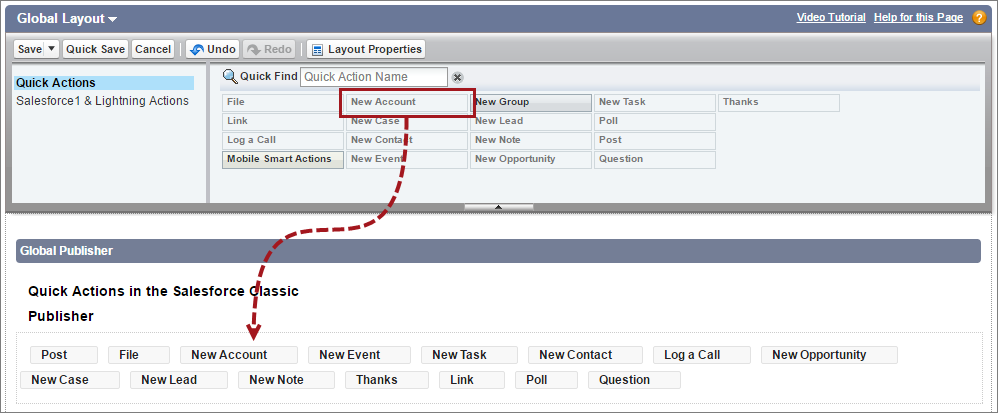
Go to the Chatter tab in Salesforce Classic. Now the New Account action shows up in the publisher.
