
Use custom reports and dashboards to track user engagement with Learning Paths, Trailhead, and enablement sites (myTrailhead).
Required Editions
| Available in: Lightning Experience |
| Available in: Developer, Professional, Enterprise, Performance, and Unlimited Editions |
| Not Available for: Chatter External, Chatter Free, or Communities (now known as Experience Cloud) user licenses |
| Enablement Sites (myTrailhead) available in: Enterprise, Performance, and Unlimited Editions |
| User Permissions Needed | |
|---|---|
| To create custom reports and dashboards for Learning Paths | Manage Learning Reporting |
| To create and update custom report types |
|
| To delete custom report types |
|

Learning Paths is turned off by default in all environments in Winter ’25 and later. To turn on Learning Paths, contact Salesforce Customer Support.
Learning Paths isn’t available in a sandbox or in Government Cloud Plus environments.

Use Cases for Reporting on Learning Paths
Learning Paths comes with four objects. Two of them give you information about Trailhead and an enablement site, and two give you information about your assignments in Learning Paths. You can:
- Track the number of Trailhead and enablement site modules completed, including total points earned and how long it took each user to complete each module.
- Identify the modules that are the most popular with your users by tracking how many people complete each one.
- Track the number of assigned modules that your users started but haven’t completed to get an idea of how helpful that learning item is.
- Track how many learning items you assign in a given month and how many are in progress, overdue, or completed.
- Filter your reports by user fields such as username, profile, role, manager, or locale.
Here are examples of how you can use the four objects to track your users’ progress on learning items. Set up a custom report type using one of the following objects to monitor Learning Paths.
| Object | Pulls Data from... | Create a Report Showing... |
|---|---|---|
| Learning Content | Trailhead and an enablement site | How many Trailhead or enablement site modules exist, by module title, and how many points a user can earn for each |
| Learning Content Progress | Trailhead and an enablement site |
How many Trailhead and enablement site modules your users completed Which users completed a particular Trailhead or enablement site module and how long it took them to finish How many enablement site modules are in progress How many total points earned company-wide |
| Learning | Learning Paths | How many individual users you assigned a learning item to and how many of those users completed the item |
| Learning Assignment Progress | Learning Paths |
Which users you assigned a learning item to, which users have it in progress, and which users completed it Which users have an overdue learning assignment The percentage of your users that completed an assigned learning item |
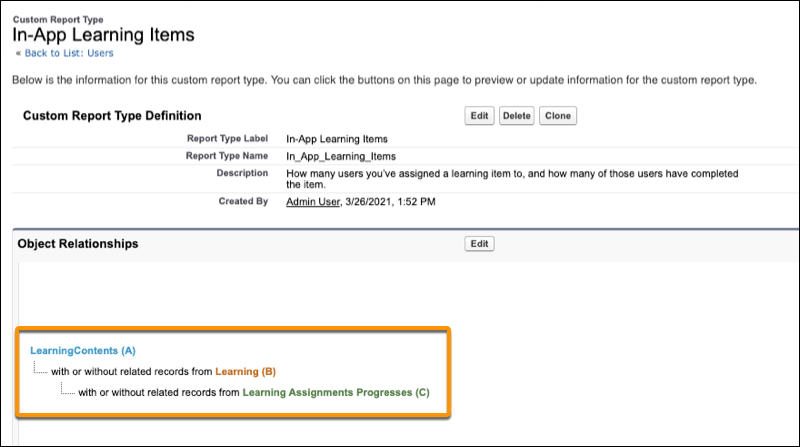
For example, create a report that associates the Learning Content object with the Learning object and Learning Assignments Progress object. Then you can review data on the modules that you assign to specific users and those users' progress on the assigned modules.
After you create reports, you can create a dashboard that shows key data.
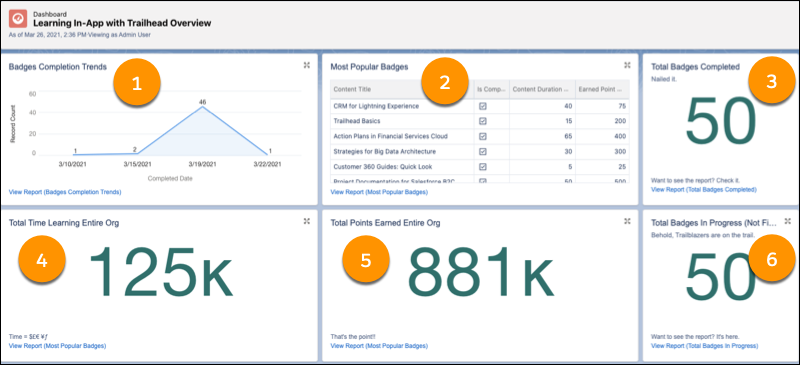
- Number of Trailhead and enablement site modules completed company-wide, by week (1)
- Most popular Trailhead and enablement site modules (2)
- Number of Trailhead and enablement site modules completed company-wide (3)
- Number of hours spent reading Trailhead and enablement site modules company-wide (4)
- Number of points earned company-wide (5)
- Number of Trailhead and enablement site modules that your users have started but not yet finished (6)
Considerations for Monitoring Learning Paths
You can track user engagement with Trailhead and enablement site modules, but not with custom links.
Reports using the Learning Content and Learning Content Progress objects show a maximum of 1,000 rows.
You can filter a report on the Learning Content Progress object by the date when a user began a module, but not when a user completed the module.
You can’t filter a report on the Learning Assignment Progress object by the date when a user completed a module.
To report on users' learning assignment progress, filter your report on the Title field from the Learning Content object. You can't create a report that shows users' progress on all assigned Trailhead modules.
You can’t track how many public groups or public group members you assigned a learning item to.
For more details on limitations for reports on Learning Paths, see Limits on Report Types and Report Considerations for Salesforce Connect—All Adaptors in Salesforce Help.