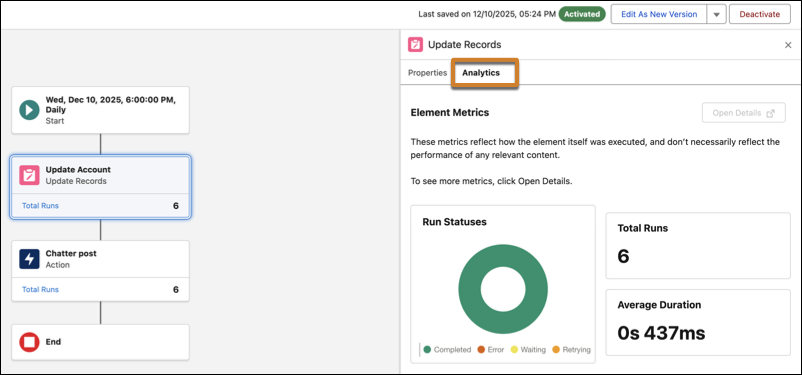
View aggregated element run data for active and previously run flows directly on the
canvas. Apply a date range filter to show metrics for a specified time period. Access more
detailed performance metrics on the element’s Analytics tab and in the element record’s Analytics
tab. Embedded analytics aren’t available for screen flows or orchestrations.
Required Editions
| User Permissions Needed |
| To open, edit, create, activate or
deactivate a flow using all flow types, elements, and features available in Flow
Builder, including Einstein and Agentforce for Flow: |
Manage Flow |
Before you can view element analytics, ensure that the flow is active or has run previously
and has at least one recorded run. View element analytics directly in an element's configuration
panel.
-
Open an active or previously run flow in Flow Builder.
Aggregated run data appears directly on supported canvas elements.
-
To filter the metrics shown on the canvas by date range, click the
Edit Date Range icon next to the date range display on the
canvas.
- Select a preset range or Custom.
- For a custom range, set the Start Date and End Date, then click
Apply. The start date must be on or after the flow’s
activation date.
-
Click a specific element on the canvas to open the element's configuration panel.
Start and end elements don’t have element analytics.
-
To view the element's Total Runs, Average Duration, and Run Statuses, select the
Analytics tab.