---
schema_version: "1"
id: 81858bb08b5a6ed8339268a8b4d64c30c1534405bd9c35516b1598176a4f1b0a
title: View On-Canvas Element Run Data
collection: admin
version: current
locale: en-us
portal_url: https://docs.salesforce.com/admin/current/en-us/platform/264-0-0/automate_flow_monitor_embedded_analytics.md
canonical_url: https://help.salesforce.com/s/articleView?id=platform.automate_flow_monitor_embedded_analytics.htm&release=264.0.0&type=5
source_site: help.salesforce.com
content_type: documentation
content_hash: 2bcd072078c11d562c7364bc576dc73ac40f371d942f8052ff1c42a73337fe7c
description: View aggregated element run data for active and previously run flows directly on the canvas. Apply a date range filter to show metrics for a specified time period. Access more detailed performance metrics on the element’s Analytics tab and in the element record’s Analytics tab. Embedded analytics aren’t available for screen flows or orchestrations.
products:
- Flow Builder
- Salesforce Platform
release: "264"
---
# View On-Canvas Element Run Data
View aggregated element run data for active and previously run flows directly on the canvas. Apply a date range filter to show metrics for a specified time period. Access more detailed performance metrics on the element’s Analytics tab and in the element record’s Analytics tab. Embedded analytics aren’t available for screen flows or orchestrations.
### Required Editions
To open, edit, create, activate or
deactivate a flow using all flow types, elements, and features available in Flow
Builder, including Einstein and Agentforce for Flow:
Manage Flow

Note You don't need to be an admin to have the Manage Flow permission. Ask your admin to add it to your profile or permission set.
Before you can view element analytics, ensure that the flow is active or has run previously and has at least one recorded run. View element analytics directly in an element's configuration panel.
1. Open an active or previously run flow in Flow Builder.
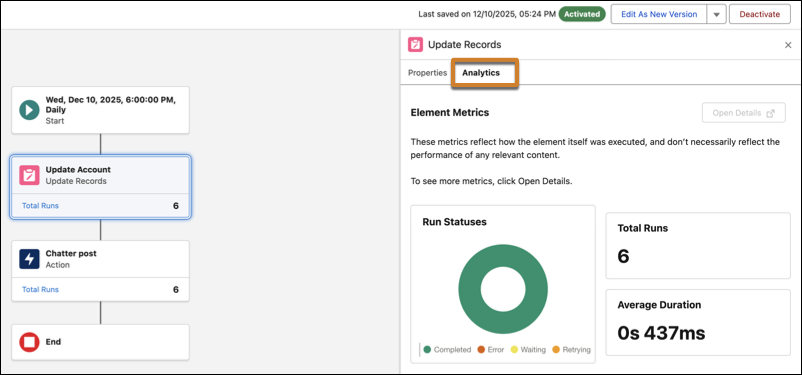
Aggregated run data appears directly on supported canvas elements.
2. To filter the metrics shown on the canvas by date range, click the **Edit Date Range** icon next to the date range display on the canvas.
- Select a preset range or **Custom**.
- For a custom range, set the Start Date and End Date, then click **Apply**. The start date must be on or after the flow’s activation date.
3. Click a specific element on the canvas to open the element's configuration panel.
Start and end elements don’t have element analytics.
4. To view the element's Total Runs, Average Duration, and Run Statuses, select the **Analytics** tab.