Easily track and manage all your failed and paused flow interviews in the Automation Lightning app. The Monitor tab shows all failed and paused flow interviews and why they failed or paused.
Required Editions
| Available in: Lightning Experience |
| View supported editions. |
| User Permissions Needed | |
|---|---|
| To view the Monitor tab in the Automation app | Manage Flow permission set |

Manage Failed and Paused Flow Interviews
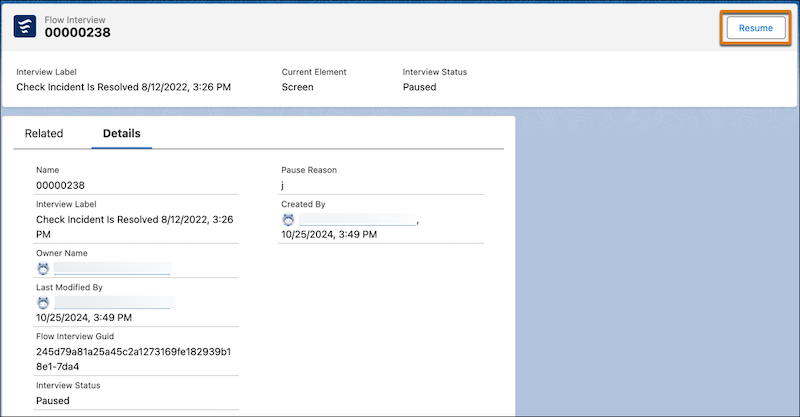
View all failed and paused flow interviews from within the Automation app. From there, you can debug failed flow interviews and resume paused flow interviews.
To access the Automation app, ensure that the process automation setting Enable the Automation Lightning App is selected.
View Failed and Paused Flows
- In the Automation app, select the Monitor tab.
-
To view failed and paused flow interviews, see the All Flow Interviews list under the
Flows subtab.
The Error Details column shows you the reason for a failed flow interview.
If the All Flow Interviews list view shows no results after customization, check if the Current Flow API Name field is included. This field is dynamic and must be paired with supporting fields. To resolve the issue, remove the Current Flow API Name field, or include at least one of these fields:
- Current Flow Type
- Current Flow Version
- Current Flow Version Label
Debug a Failed Flow
- In the Automation app, select the Monitor tab.
-
From the Flows subtab, click the failed flow name.
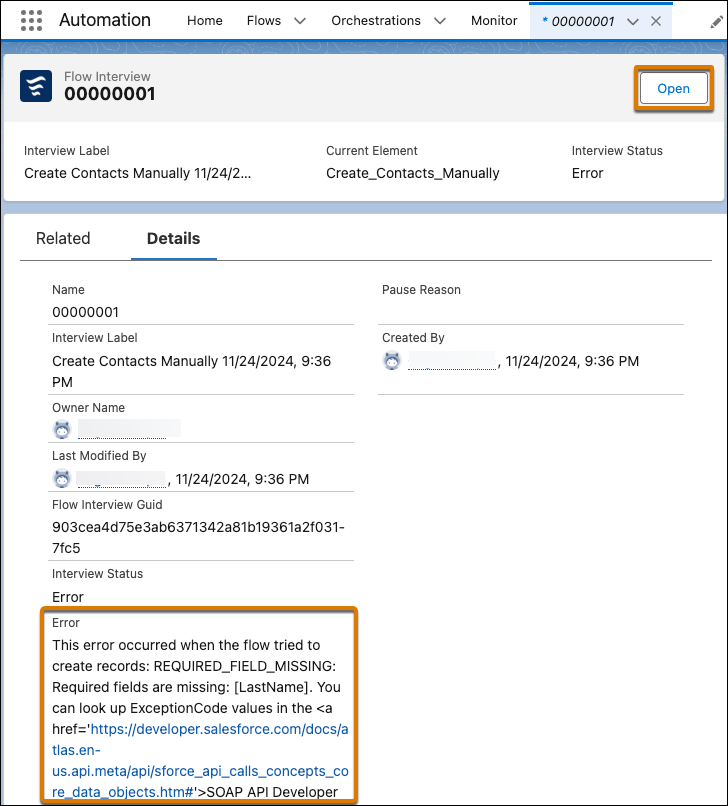
The details tab of a failed flow interview shows a description of the error that caused the flow interview to fail.
-
From the flow Details tab, click Open.
Flow Builder shows the debug details of the failed flow run.