---
schema_version: "1"
id: 955c16baaf7ff0b43385eb88ba3c309b7216f21e2e7c647f957ef1b75b39fe0f
title: Monitoring and Managing Paused and Failed Flow Interviews
collection: admin
version: current
locale: en-us
portal_url: https://docs.salesforce.com/admin/current/en-us/platform/264-0-0/automate_ala_monitor.md
canonical_url: https://help.salesforce.com/s/articleView?id=platform.automate_ala_monitor.htm&release=264.0.0&type=5
source_site: help.salesforce.com
content_type: documentation
content_hash: d8aa9877862424d4ae4138e6c63f2e207d67d6fe320819fe4ffb8d654c7578de
description: Easily track and manage all your failed and paused flow interviews in the Automation Lightning app. The Monitor tab shows all failed and paused flow interviews and why they failed or paused.
products:
- Flow Builder
- Salesforce Platform
release: "264"
---
# Monitoring and Managing Paused and Failed Flow Interviews
Easily track and manage all your failed and paused flow interviews in the Automation Lightning app. The Monitor tab shows all failed and paused flow interviews and why they failed or paused.
### Required Editions

Note For bulk transactions that include Apex Actions, failed flow interviews show the first record's details instead of the details for the record that caused the failure.
## Manage Failed and Paused Flow Interviews
View all failed and paused flow interviews from within the Automation app. From there, you can debug failed flow interviews and resume paused flow interviews.
To access the Automation app, ensure that the process automation setting Enable the Automation Lightning App is selected.
### View Failed and Paused Flows
1. In the Automation app, select the **Monitor** tab.
2. To view failed and paused flow interviews, see the All Flow Interviews list under the Flows subtab.
The Error Details column shows you the reason for a failed flow interview.
If the All Flow Interviews list view shows no results after customization, check if the Current Flow API Name field is included. This field is dynamic and must be paired with supporting fields. To resolve the issue, remove the Current Flow API Name field, or include at least one of these fields:
- Current Flow Type
- Current Flow Version
- Current Flow Version Label
### Debug a Failed Flow
1. In the Automation app, select the **Monitor** tab.
2. From the Flows subtab, click the failed flow name.
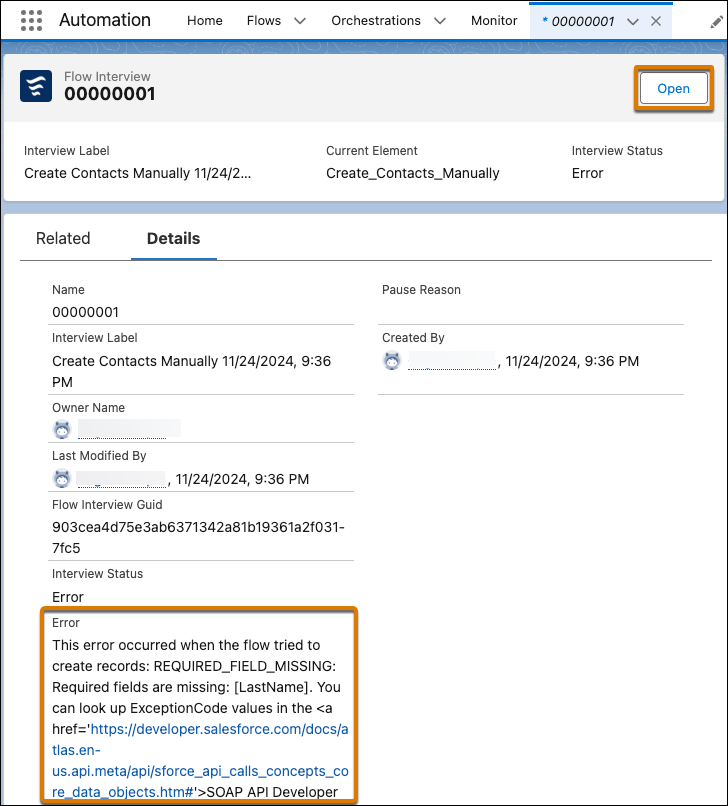
The details tab of a failed flow interview shows a description of the error that caused the flow interview to fail.
3. From the flow Details tab, click **Open**.
Flow Builder shows the debug details of the failed flow run.
### Resume a Paused Flow
1. In the Automation app, select the **Monitor** tab.
2. From the Flows subtab, click the paused flow name.
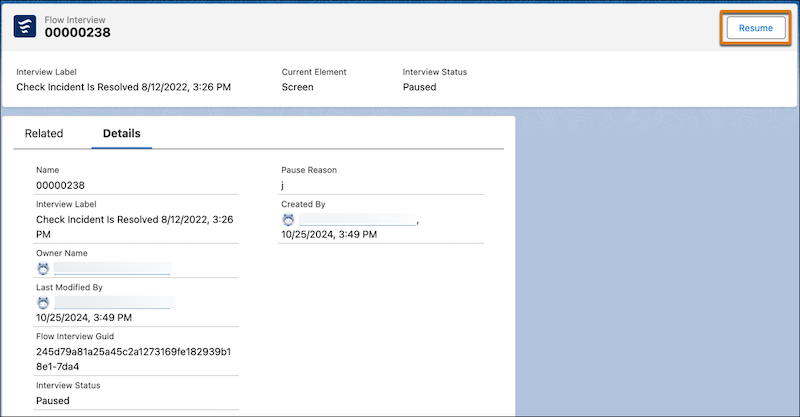
3. When you're ready for the flow interview to run again, from the flow Details tab, click **Resume**.
#### See Also
- [Test or Troubleshoot Flows with the Flow Builder Debugger](https://help.salesforce.com/s/articleView?id=platform.flow_test_debug.htm&release=264.0.0&type=5 "For flows that don't use Test Mode, use the Debug option to test or troubleshoot the flow. Review step-by-step details of how the flow runs and the path it takes.")
- [Resume a Flow Interview](https://help.salesforce.com/s/articleView?id=platform.flow_interviews_resume.htm&release=264.0.0&type=5 "If you paused a flow interview, resume it after you have all the necessary information. If you pause a flow interview and the associated flow is updated before you resume, the resumed flow interview doesn’t use the updated flow. Instead, it uses the version of the flow that was active when you paused.")