
Sync all your prospect records with Salesforce.
Required Editions
| Available in: All Account Engagement Editions |
| User Permissions Needed | |
|---|---|
| To use the Sync All Prospects option: | Account Engagement Administrator role |

Note Business units with fewer than 500,000 prospects can trigger a full sync once every 7
days using the Sync All Prospects option. For larger volumes of data, contact Salesforce
Customer Support to run a full sync.
-
Open the Connectors page.
- In Account Engagement, select Admin and then select Connectors.
- In the Lightning app, select Account Engagement Settings and then Connectors.
-
Next to the Salesforce connector, click the
 icon, and select Sync All Prospects.
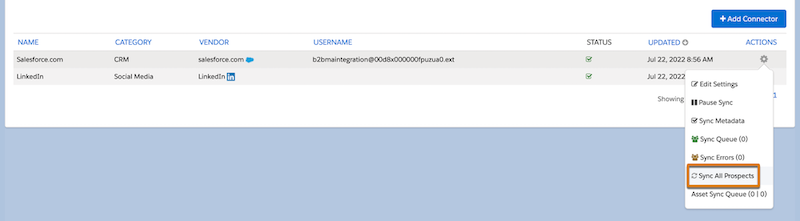
- Review the information in the pop-out box, and select Sync Prospects.
- In the pop-out box, confirm that all prospects are queued to sync, and then click OK.
Review the sync queue and sync errors. A synced prospect isn’t removed from the queue until their record has been synced with Salesforce without issues. Synced prospects with issues are sent to the sync error queue.