---
schema_version: "1"
id: 46417b2d215c22a5b75067e4e933590f1d0ec0394ab57648f51c1dd3a70abbe7
title: Run a Full Sync
collection: admin
version: current
locale: en-us
portal_url: https://docs.salesforce.com/admin/current/en-us/mktg/264-0-0/pardot_sf_connector_run_a_full_sync.md
canonical_url: https://help.salesforce.com/s/articleView?id=mktg.pardot_sf_connector_run_a_full_sync.htm&release=264.0.0&type=5
source_site: help.salesforce.com
content_type: documentation
content_hash: 7d95df63ebba0993b061e83d9a959b35206b2b6c47524de84d94a157f234be7d
description: Sync all your prospect records with Salesforce.
products:
- Marketing
- Marketing Cloud Account Engagement
release: "264"
---
# Run a Full Sync
Sync all your prospect records with Salesforce.
### Required Editions
Available in: All Account Engagement Editions
User Permissions Needed
To use the Sync All Prospects option:
Account Engagement Administrator role

Note Business units with fewer than 500,000 prospects can trigger a full sync once every 7 days using the Sync All Prospects option. For larger volumes of data, contact Salesforce Customer Support to run a full sync.
1. Open the Connectors page.
- In Account Engagement, select **Admin** and then select **Connectors**.
- In the Lightning app, select **Account Engagement Settings** and then **Connectors**.
2. Next to the Salesforce connector, click the  icon, and select **Sync All Prospects**.
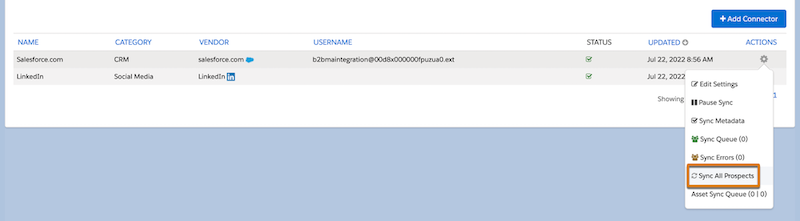
3. Review the information in the pop-out box, and select **Sync Prospects**.
4. In the pop-out box, confirm that all prospects are queued to sync, and then click **OK**.
Review the sync queue and sync errors. A synced prospect isn’t removed from the queue until their record has been synced with Salesforce without issues. Synced prospects with issues are sent to the sync error queue.
#### See Also
- [Review and Clear Prospect Sync Errors](https://help.salesforce.com/s/articleView?id=mktg.pardot_clear_prospect_sync_errors.htm&release=264.0.0&type=5 "After you resolve prospect sync errors, you can resync those prospects from the sync error page in Account Engagement. Depending on the errors, it’s possible your Salesforce admin has to resolve them.")