
Set up Tableau Next to unify marketing data and analytics with Data 360, Tableau Next, and the Marketing Semantic Data Model. Use embedded reports and comprehensive dashboards to analyze campaign and content performance, track marketing goals, understand customer journeys, and identify opportunities to improve ROI.
Required Editions
| User Permissions Needed | |
|---|---|
| To turn on Marketing Performance Intelligence: | Data Cloud Architect and Marketing Cloud Admin permission sets |
| To view Marketing Performance Intelligence dashboards: |
Tableau Next Included App Business User permission set AND Marketing Cloud Manager |

Marketing Performance is now Marketing Performance Intelligence.
If you installed Marketing Performance before Winter ’26, update the app. Remove the current version, and then reinstall the latest version. See Get the Latest Marketing Performance Intelligence Dashboard.
Using the Marketing Performance Intelligence app consumes Data 360 credits, which can increase your bill. Learn more about the billing impact of Data 360-powered features.
Install Marketing Performance Intelligence
Set up Marketing Performance Intelligence for the first time with Data 360 integration, data kits, and analytics workspace.
- From Setup, in the Quick Find box, enter Marketing Performance Intelligence, and click Marketing Performance Intelligence.
-
Confirm that you have these prerequisites:
- Make sure that you've installed the required Marketing data kits.
-
Deploy the Sales Data Kit. To avoid deploying the full kit, manually map these fields to the data model
object (DMO) in Data Cloud.
DMO Fields Contact Point Email -
Email Latest Bounce Date Time
-
Email Latest Bounce Reason Text
-
- To personalize marketing content with data, set up Personalization.
- To include web tracking data in reports, such as custom tracked link activity, configure web tracking.
- To view embedded analytics for Flow elements, install Flow Performance.
-
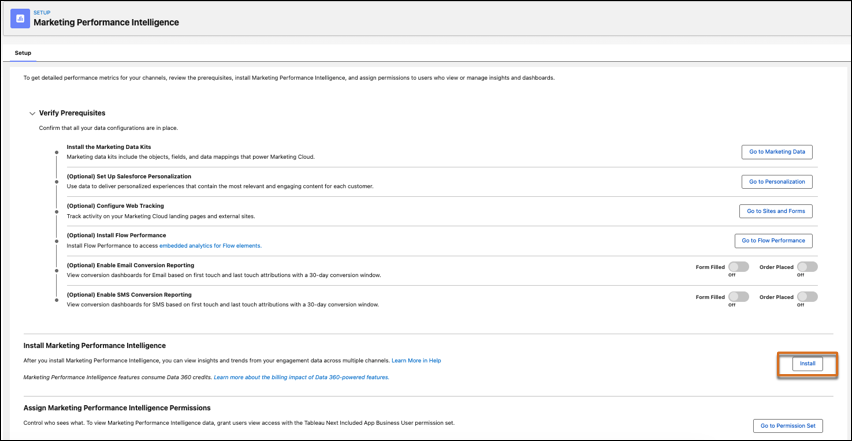
In the Install Marketing Performance Intelligence section, click
Install.
To start the installation, you must have both the Data Cloud Architect and Marketing Cloud Admin permission sets. Monitor the progress of the installation on the Marketing Performance Intelligence tab. To view the success or failure messages associated with your install, under Monitoring, click the event name.
- In the Assign Marketing Performance Intelligence Permissions section, click Go to Permission Set. Assign the Tableau Next Included App Business User and the Marketing Cloud Manager permission sets to any users who require access to Marketing Performance Intelligence data.
-
In the Marketing app, check the Data Management and Marketing Analytics tabs to
confirm that your data and dashboards are available.
In the Marketing app, check the Data Management and Marketing Analytics tabs to confirm that your data and dashboards are available.
To learn more about Marketing Performance Intelligence dashboards, see Measure Success.
Get the Latest Marketing Performance Intelligence Dashboard
To access the latest features and dashboards, remove the current Marketing Performance Intelligence app and install the latest version. Salesforce regularly updates Marketing Performance Intelligence reports and dashboards with new features, fields, and enhancements. You can find these updates in the release notes.
Rich Communication Services (RCS) analytics is available by default after you set up an eligible RCS channel, deploy its required data kits, and install the latest version of the Marketing Performance Intelligence app. It doesn’t require an additional analytics license.
- From Setup, in the Quick Find box, enter Marketing Performance Intelligence, and then click Marketing Performance Intelligence.
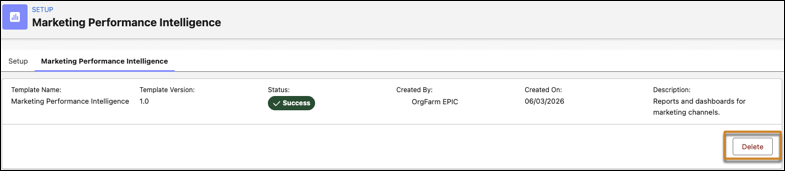
- Go to the Marketing Performance Intelligence tab.
-
Delete the existing app.
- Make sure that you’ve updated the required Marketing data kits.
-
After the data kits update and show a Deployed status, reinstall the Marketing
Performance Intelligence app from the Setup tab.
- To view the updated dashboard, open the Marketing Analytics tab in the Marketing app.