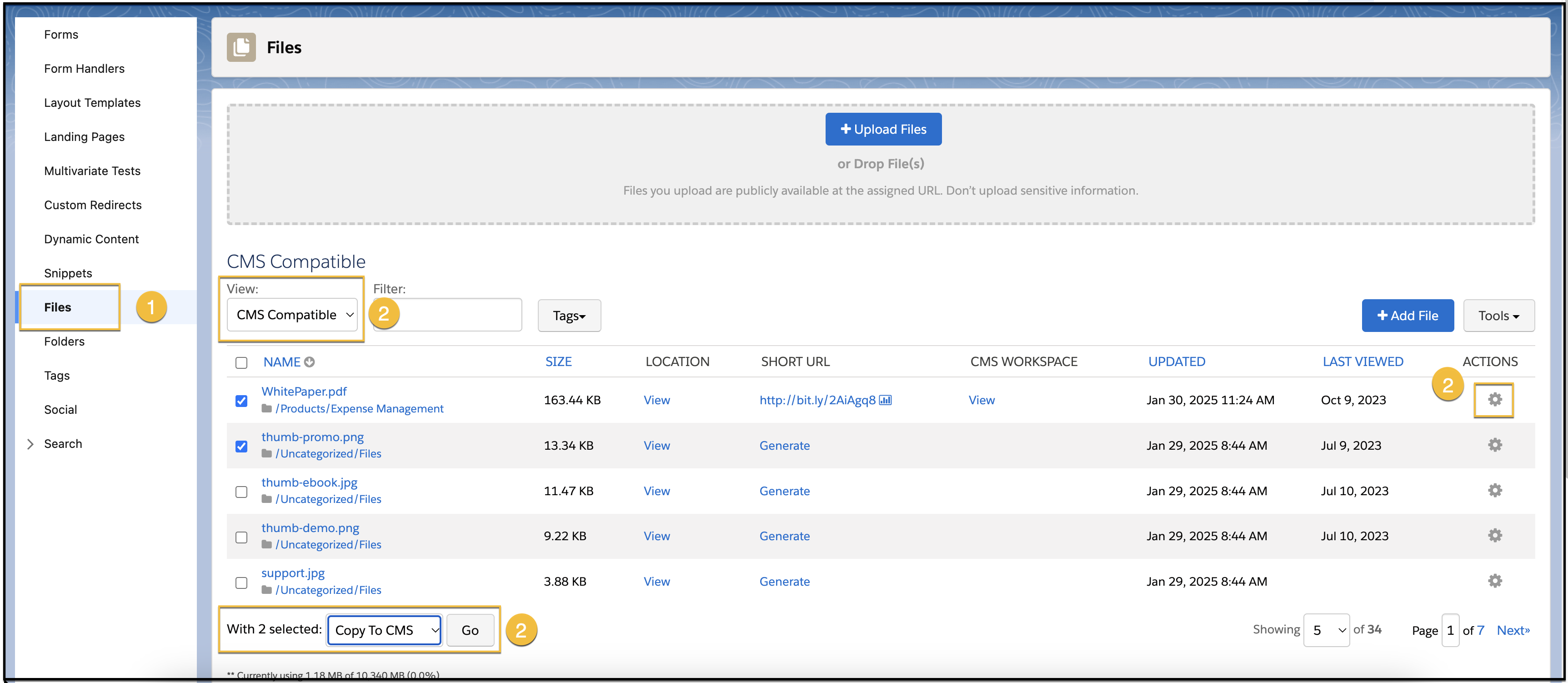
To use your Account Engagement files for future marketing campaigns, copy the files to a CMS Marketing workspace. When you copy a file, the folder permissions in Account Engagement don’t transfer to the CMS workspace.
Required Editions
| Available in: Account Engagement Growth, Plus, Advanced, and Premium Editions |
| User Permissions Needed | |
|---|---|
| To copy files: | Account Engagement Administrator or Marketing role |
Images files must be in a Workspace 1.0 + Channel 2.0 when copied for use in the Account Engagement Lightning Builder.
-
Open the Files page.
- In Account Engagement, select Marketing | Content | Files.
- In the Lightning app, select Content and then Files.
-
From the View dropdown, select CMS Compatible, and then choose
the files that you want to copy.
- To copy an individual file, click
 next to it, and select Copy to CMS.
 - To copy multiple files, select the files, and from the dropdown under the table, select Copy to CMS. And then click Go.
When the copy is complete, you receive a confirmation email.
- To copy an individual file, click