---
schema_version: "1"
id: 2aa39fa5fef7f9cc1da4af0a8172e5c4211e8ccc7814fadd37d9491a0a351385
title: Copy Files from Your Account Engagement Business Unit to a CMS Workspace
collection: admin
version: current
locale: en-us
portal_url: https://docs.salesforce.com/admin/current/en-us/mktg/264-0-0/mcae_copy_image_files_to_cms.md
canonical_url: https://help.salesforce.com/s/articleView?id=mktg.mcae_copy_image_files_to_cms.htm&release=264.0.0&type=5
source_site: help.salesforce.com
content_type: documentation
content_hash: 6e4713ec2092d566467c4e6f22497aa5993afc35b700fb8ac2dde82ea3142698
description: To use your Account Engagement files for future marketing campaigns, copy the files to a CMS Marketing workspace. When you copy a file, the folder permissions in Account Engagement don’t transfer to the CMS workspace.
products:
- Marketing
- Marketing Cloud Account Engagement
release: "264"
---
# Copy Files from Your Account Engagement Business Unit to a CMS Workspace
To use your Account Engagement files for future marketing campaigns, copy the files to a CMS Marketing workspace. When you copy a file, the folder permissions in Account Engagement don’t transfer to the CMS workspace.
### Required Editions
Available in: Account Engagement Growth, Plus, Advanced, and Premium Editions
User Permissions Needed
To copy files:
Account Engagement Administrator or Marketing
role
Images files must be in a Workspace 1.0 + Channel 2.0 when copied for use in the Account Engagement Lightning Builder.
1. Open the Files page.
- In Account Engagement, select **Marketing** | **Content** | **Files**.
- In the Lightning app, select **Content** and then **Files**.
2. From the View dropdown, select **CMS Compatible**, and then choose the files that you want to copy.
- To copy an individual file, click  next to it, and select **Copy to CMS**.
- To copy multiple files, select the files, and from the dropdown under the table, select **Copy to CMS**. And then click **Go**.
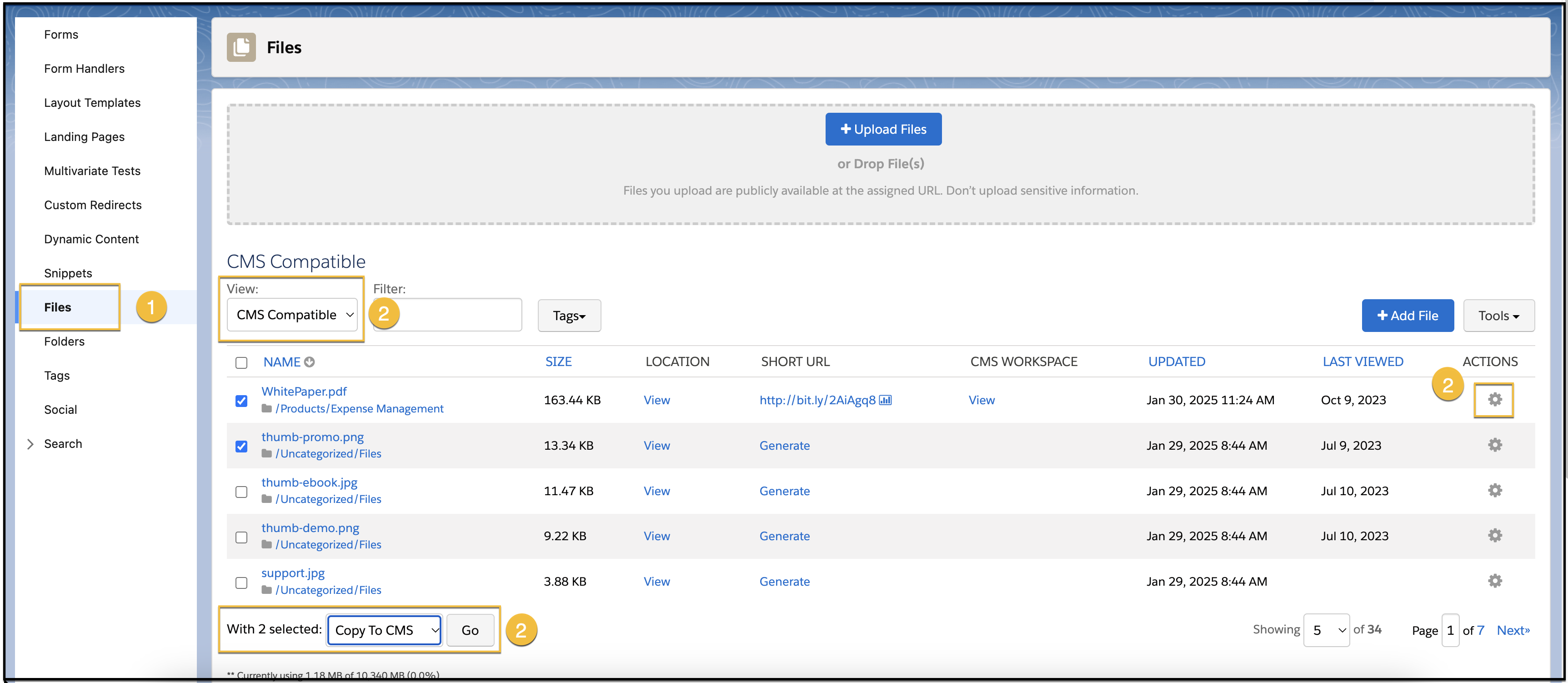
When the copy is complete, you receive a confirmation email.
#### See Also
- [Enable Copy to CMS for Account Engagement Business Units](https://help.salesforce.com/s/articleView?id=mktg.mcae_copy_image_files_to_cms_setup.htm&release=264.0.0&type=5 "To let marketers use their Account Engagement marketing content for future marketing campaigns, enable copying assets to a CMS Marketing workspace in Salesforce. When you enable copying assets, a new content workspace is created.")
- [Copy Sent Emails from Your Account Engagement Business Unit to a CMS Workspace](https://help.salesforce.com/s/articleView?id=mktg.mcae_copy_emails_to_cms.htm&release=264.0.0&type=5 "To use your Account Engagement emails for future marketing campaigns, copy the emails to a CMS Marketing workspace. When you copy an email, the folder permissions in Account Engagement don’t transfer to the CMS workspace.")
- [Copy Forms from Your Account Engagement Business Unit to a CMS Workspace](https://help.salesforce.com/s/articleView?id=mktg.mcae_copy_forms_to_cms.htm&release=264.0.0&type=5 "To use your Account Engagement forms for future marketing campaigns, copy the forms to a CMS Marketing workspace. When you copy a form, the folder permissions in Account Engagement don’t transfer to the CMS workspace.")