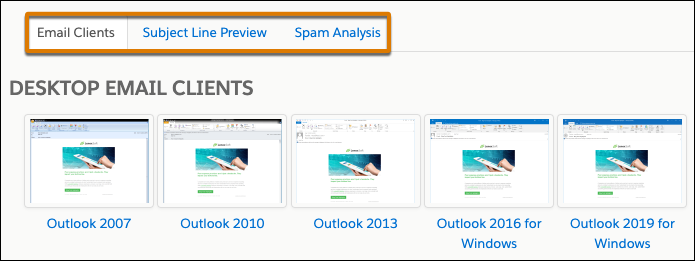
If you’re using the Advanced Email Analytics package for Account Engagement, you have access to expanded testing tools. You can preview
how your email and subject line looks in different email clients and get a spam analysis for
your content. Each inbox preview render is stored for 90 days from its creation
date.
Required Editions
| Available in: Account Engagement Plus,
Advanced, and Premium
Editions |
|
Available for an additional
cost in: Account Engagement Growth
Edition
|
| User Permissions
Needed |
| To create, test, and send emails |
Account Engagement Administrator or Marketing
role
|
-
Click Account Engagement Email, and then click
Drafts or Templates.
-
For the draft email or template you want to test, open the Testing tab.
- For list email and email template drafts, click the
 and select Testing.
- For published email templates, click the and select Edit. Then, click the
Testing tab.
-
From the Testing tab, in the Rendering Tests section, click New
Render.
-
Wait for your render to generate. You receive an email when the render is ready.
It can take time for a render to load. While waiting, you can work on other
things.
-
When your render is ready, click the link with the name of your email on the Tests page
or Testing tab in the classic builder.
-
Use the tabs to view your email in different email clients, see your subject line
preview, and review your spam
analysis.