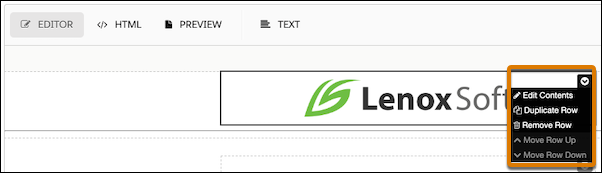
Email templates that you create in Account Engagement are editable by default. If you want users to edit only parts of a template, you can define which elements are editable. When you define at least one element as editable, the default behavior changes and any element that you don’t define as editable is locked.
Required Editions
| Available in: All Account Engagement Editions |
| User Permissions Needed | |
|---|---|
| To edit email templates: | Account Engagement Administrator or Marketing role |
Editing restrictions aren’t applied to emails created using the Send Account Engagement Email button.
-
Open the Email Templates page.
- In Account Engagement, select Marketing | Emails | Templates.
- In the Lightning app, select Account Engagement Email and then Templates.
- Create or edit an email template.
- On the Building tab, click HTML to edit the source code.
-
Insert an attribute for each element to define what users can do.
pardot-regionlets users edit the content of an element.pardot-repeatablelets users copy or move the element.pardot-removablelets users remove the element
-
To combine capabilities, nest different attributes. For example, to make a section
removable and editable, use both
pardot-removableandpardot-region.<td width="200"> <div pardot-removable="sidebar-1"> <div pardot-region> <h1>Title</h1> A paragraph of text <a href="#">Read More</a> </div> </div> </td>When combining content regions, you can only nest different attributes. - To make the template available to users, click Publish to Template.
When a user applies the template, a dropdown menu appears in the corner of each editable section with the options available for that element.