---
schema_version: "1"
id: 05c342fff815c124aa19e29d7063300d10a21d1d963b686e80f4c5c25794a3aa
title: Control How Users Can Change Email Template Content
collection: admin
version: current
locale: en-us
portal_url: https://docs.salesforce.com/admin/current/en-us/mktg/264-0-0/mcae_classic_email_content_regions.md
canonical_url: https://help.salesforce.com/s/articleView?id=mktg.mcae_classic_email_content_regions.htm&release=264.0.0&type=5
source_site: help.salesforce.com
content_type: documentation
content_hash: 00af5298c6963b1a7cd027271223f29adb62ffaa1162b0d7df0e09ad675128f9
description: Email templates that you create in Account Engagement are editable by default. If you want users to edit only parts of a template, you can define which elements are editable. When you define at least one element as editable, the default behavior changes and any element that you don’t define as editable is locked.
products:
- Marketing
- Marketing Cloud Account Engagement
release: "264"
---
# Control How Users Can Change Email Template Content
Email templates that you create in Account Engagement are editable by default. If you want users to edit only parts of a template, you can define which elements are editable. When you define at least one element as editable, the default behavior changes and any element that you don’t define as editable is locked.
### Required Editions
| Available in: All Account Engagement Editions |
| User Permissions Needed |
| To edit email templates: |
Account Engagement Administrator or Marketing
role
|
Editing restrictions aren’t applied to emails created using the Send Account Engagement Email button.
1. Open the Email Templates page.
1. In Account Engagement, select **Marketing** | **Emails** | **Templates**.
2. In the Lightning app, select **Account Engagement Email** and then **Templates**.
2. Create or edit an email template.
3. On the Building tab, click **HTML** to edit the source code.
4. Insert an attribute for each element to define what users can do.
- `pardot-region` lets users edit the content of an element.
- `pardot-repeatable` lets users copy or move the element.
- `pardot-removable` lets users remove the element
5. To combine capabilities, nest different attributes. For example, to make a section removable and editable, use both `pardot-removable` and `pardot-region`.
```html
|
```
When combining content regions, you can only nest different attributes.
6. To make the template available to users, click **Publish to Template**.
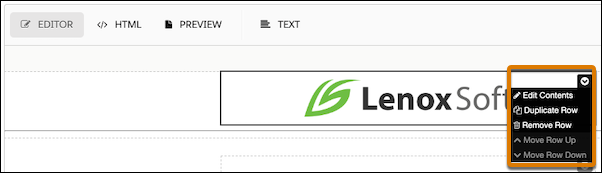
When a user applies the template, a dropdown menu appears in the corner of each editable section with the options available for that element.
#### See Also
- [Reuse Email Designs with Account Engagement Templates](https://help.salesforce.com/s/articleView?id=mktg.pardot_email_templates.htm&release=264.0.0&type=5 "To save time and standardize your marketing content, create email templates for the types of emails that you send most often in Account Engagement. A template is a starting point for a list email that your team can use repeatedly. Using a template also reduces the chance that you forget something important, like a piece of branding or standard contact information.")