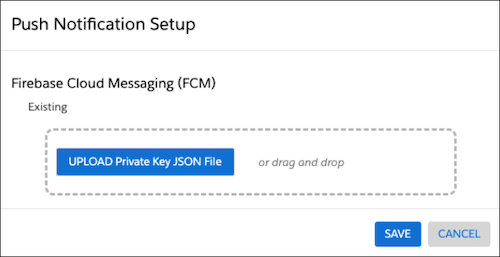
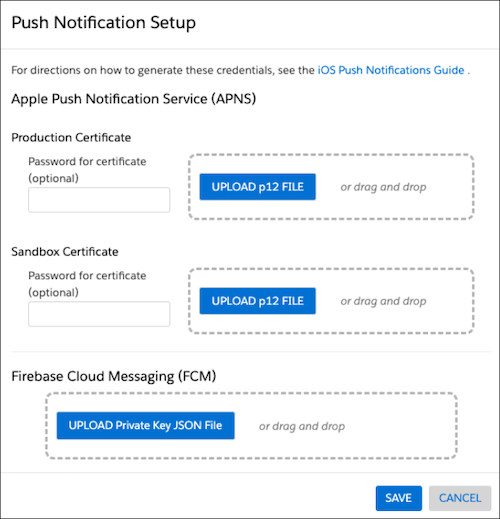
Before you publish a Mobile Push campaign, you must generate and upload a certificate
for Apple Push Notification service (APNs) or Firebase Cloud Messaging (FCM). If you enter
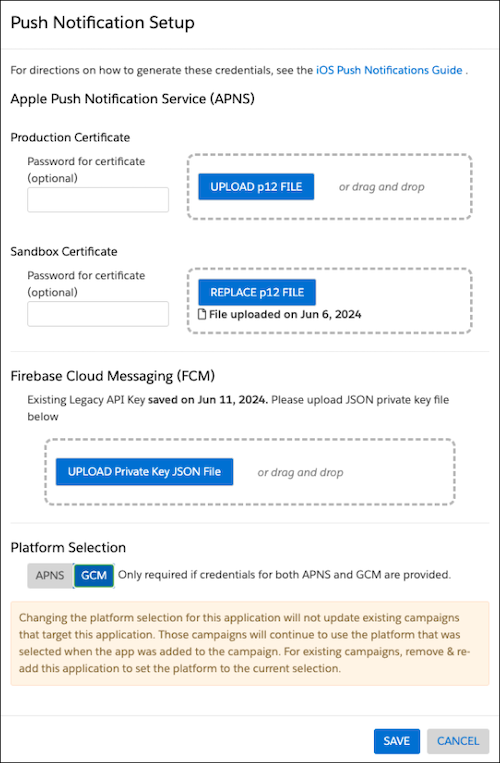
credentials for both APNs and FCM, you must pick one when you add the app to a Mobile Push
campaign. To prevent duplicate notifications, Personalization only sends to one
platform.
Required Editions
| Available in: Premium Edition |
| Permissions
Needed |
| To create and upload APNs and Firebase credentials for a mobile
app: |
A role with Administrator permissions |
-
Complete APNs and Firebase configuration before uploading APNs and Firebase credentials
in the push notification setup.
-
In the Channels & Campaigns section of the main
navigation, select Mobile.
-
In the Mobile App Setup section, select your existing
Personalization-enabled mobile app.
-
Click Mobile Push Setup.
-
Enter or upload the credentials.
-
For iOS apps, if you've entered credentials for both APNs and GCM, choose the
platform under Platform Selection to which notifications will
be exclusively sent.
-
Click Save.