---
schema_version: "1"
id: 63376c8b38ad1f65665c72670508fc6dd543a8e0f8b2f6d0697c28a5ab8991ca
title: Complete Mobile Push Setup
collection: admin
version: current
locale: en-us
portal_url: https://docs.salesforce.com/admin/current/en-us/mktg/264-0-0/mc_pers_mobile_campaign_push_setup.md
canonical_url: https://help.salesforce.com/s/articleView?id=mktg.mc_pers_mobile_campaign_push_setup.htm&release=264.0.0&type=5
source_site: help.salesforce.com
content_type: documentation
content_hash: e9484dcdf5c7330edcf65fef788681a0538d9f6fb462953f77014c3c64114641
description: Before you publish a Mobile Push campaign, you must generate and upload a certificate for Apple Push Notification service (APNs) or Firebase Cloud Messaging (FCM). If you enter credentials for both APNs and FCM, you must pick one when you add the app to a Mobile Push campaign. To prevent duplicate notifications, Personalization only sends to one platform.
products:
- Marketing
- Salesforce Personalization
release: "264"
---
# Complete Mobile Push Setup
Before you publish a Mobile Push campaign, you must generate and upload a certificate for Apple Push Notification service (APNs) or Firebase Cloud Messaging (FCM). If you enter credentials for both APNs and FCM, you must pick one when you add the app to a Mobile Push campaign. To prevent duplicate notifications, Personalization only sends to one platform.
### Required Editions
Available in: Premium Edition
Permissions
Needed
To create and upload APNs and Firebase credentials for a mobile
app:
A role with Administrator permissions
1. Complete APNs and Firebase configuration before uploading APNs and Firebase credentials in the push notification setup.
2. In the **Channels & Campaigns** section of the main navigation, select **Mobile**.
3. In the **Mobile App Setup** section, select your existing Personalization-enabled mobile app.
4. Click **Mobile Push Setup**.
5. Enter or upload the credentials.
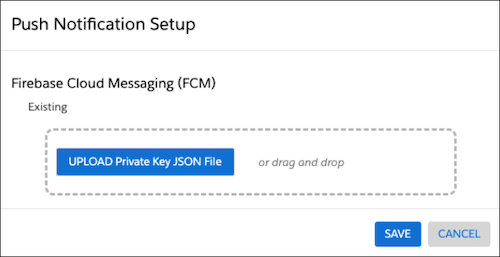
- For Android/iOS apps using FCM, upload your private key JSON file to the FCM field. For more information, see [Push Notifications (Android)](https://developer.salesforce.com/docs/marketing/personalization/references/personalization-android-sdk/push-notifications.html).
For information on generating a private key file in Firebase, see [Provide credentials manually](https://firebase.google.com/docs/cloud-messaging/migrate-v1#provide-credentials-manually) in the developer documentation for Firebase Cloud Messaging.

Note The default service account is assigned a role that provides more access than necessary. To limit access and enhance security, we recommend creating a service account with only the [Firebase Cloud Messaging API Admin](https://gcp.permissions.cloud/predefinedroles/firebasecloudmessaging.admin) role.
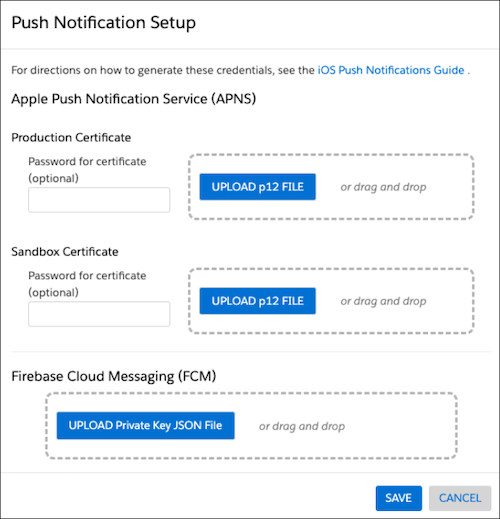
- For iOS apps using APNs, upload the .p12 file for each sandbox or production certificate. For more information, see [Push Notifications (iOS)](https://developer.salesforce.com/docs/marketing/personalization/references/personalization-ios-sdk/push-notifications.html).
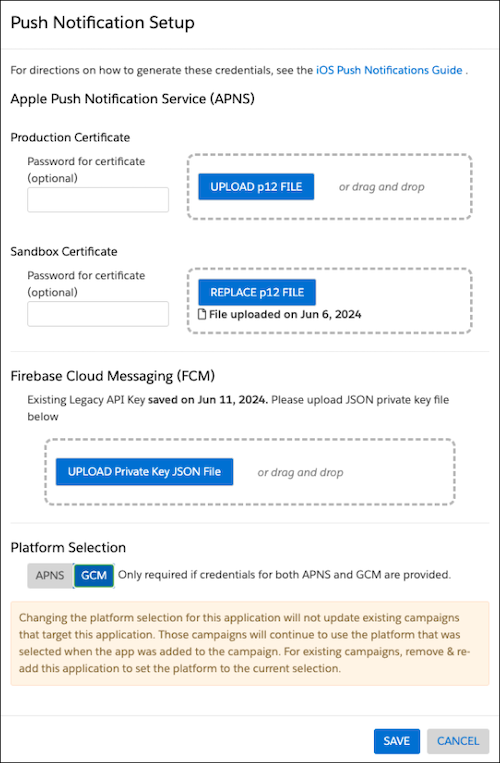
6. For iOS apps, if you've entered credentials for both APNs and GCM, choose the platform under **Platform Selection** to which notifications will be exclusively sent.
7. Click **Save**.