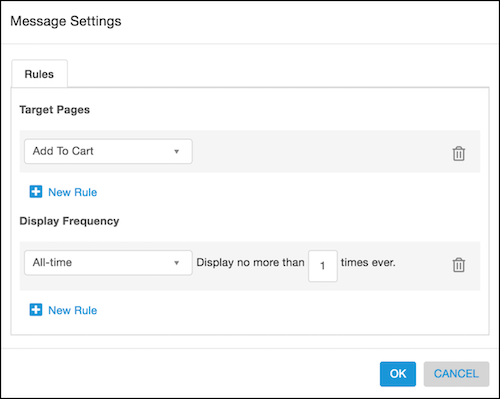
After you create a Mobile In-App Message or Mobile Data campaign, you can add message
rules and promote content in Message Rules. Message rules control when
a mobile in-app message shows for a visitor. For example, show the message when a visitor
takes a specific action. Or only show the message a certain number of times per visit, during
a specific time period, or all of the time. Use Promoted Content to promote a specific item or
multiple items either by selecting the item or by using Einstein Recipes algorithms or
Einstein Decisions AI.
Required Editions
| Available in: Premium Edition |
| Permissions
Needed |
| To create or edit mobile campaigns: |
A role with Campaign Create/Edit permissions |
| To publish or delete mobile campaigns: |
A role with Campaign Publish/Delete permissions |
-
Create a Mobile In-App Message or Mobile Data campaign. For more information, see
Create a Mobile In-App Message Campaign and Create a Mobile Data Campaign.
-
Click Message Rules.
-
To show the message for a specific action or an item action using a
Target Pages rule:
-
Select the rule.
-
Complete the configuration options.
-
To add more Target Pages rules, click +New
Rule, select the rule, and complete the configuration
options.
-
Each mobile in-app message includes a default Display
Frequency rule that shows the message only one time for all time. To
change the default Display Frequency rule:
-
Select Current Visit or
Interval from the dropdown.
-
Complete the configuration options.
-
To add more Display Frequency rules, click
+New Rule, select the rule, and complete the
configuration options.
-
To save your changes, click OK.