---
schema_version: "1"
id: e95c424842a73d98aceaece8c6fcf6a06d476d960bb3289fad489a6924a5ed00
title: Add Mobile Message Targeting Rules
collection: admin
version: current
locale: en-us
portal_url: https://docs.salesforce.com/admin/current/en-us/mktg/264-0-0/mc_pers_mobile_campaign_message_targeting_rules.md
canonical_url: https://help.salesforce.com/s/articleView?id=mktg.mc_pers_mobile_campaign_message_targeting_rules.htm&release=264.0.0&type=5
source_site: help.salesforce.com
content_type: documentation
content_hash: a2d6e9059252650f3f86267b8b9f360e2c389fd41ca22941f718b2a9d8ec4302
description: After you create a Mobile In-App Message or Mobile Data campaign, you can add message rules and promote content in Message Rules. Message rules control when a mobile in-app message shows for a visitor. For example, show the message when a visitor takes a specific action. Or only show the message a certain number of times per visit, during a specific time period, or all of the time. Use Promoted Content to promote a specific item or multiple items either by selecting the item or by using Einstein Recipes algorithms or Einstein Decisions AI.
products:
- Marketing
- Salesforce Personalization
release: "264"
---
# Add Mobile Message Targeting Rules
After you create a Mobile In-App Message or Mobile Data campaign, you can add message rules and promote content in **Message Rules**. Message rules control when a mobile in-app message shows for a visitor. For example, show the message when a visitor takes a specific action. Or only show the message a certain number of times per visit, during a specific time period, or all of the time. Use Promoted Content to promote a specific item or multiple items either by selecting the item or by using Einstein Recipes algorithms or Einstein Decisions AI.
### Required Editions
Available in: Premium Edition
Permissions
Needed
To create or edit mobile campaigns:
A role with Campaign Create/Edit permissions
To publish or delete mobile campaigns:
A role with Campaign Publish/Delete permissions

Note Message rules control when a mobile app user sees a message either based on frequency or after performing an action. For example, you can configure the message to appear only if the user adds an item to the shopping cart. For more information, see [Use Mobile Campaign Rules](https://help.salesforce.com/s/articleView?id=mktg.mc_pers_mobile_campaign_rules.htm&release=264.0.0&type=5 "A critical part of a good personalization strategy is giving mobile app users information related to what they’re doing or feeling in the moment. Use campaign, experience, and message rules to deliver your message to the right person at the best time for them.").
1. Create a Mobile In-App Message or Mobile Data campaign. For more information, see [Create a Mobile In-App Message Campaign](https://help.salesforce.com/s/articleView?id=mktg.mc_pers_mobile_campaign_in_app_message.htm&release=264.0.0&type=5 "You can use a Mobile In-App Message campaign to build and deploy messages within mobile apps. Mobile In-App Message campaigns are similar to the infobar messages you can add to your website. You build, manage, and deploy Mobile In-App Message campaigns from within Personalization so you get the same real-time data and personalization you rely on with your other campaigns. You don't need an engineer's help or App Store approval to deploy new or changed messages.") and [Create a Mobile Data Campaign](https://help.salesforce.com/s/articleView?id=mktg.mc_pers_mobile_campaign_data.htm&release=264.0.0&type=5 "Create Mobile Data campaigns so your iOS and Android apps can process Personalization campaign data. Personalization triggers campaigns and delivers the data to your app.").
2. Click **Message Rules**.
3. To show the message for a specific action or an item action using a **Target Pages** rule:
1. Select the rule.
2. Complete the configuration options.
3. To add more **Target Pages** rules, click **+New Rule**, select the rule, and complete the configuration options.
4. Each mobile in-app message includes a default **Display Frequency** rule that shows the message only one time for all time. To change the default **Display Frequency** rule:
1. Select **Current Visit** or **Interval** from the dropdown.
2. Complete the configuration options.
3. To add more **Display Frequency** rules, click **+New Rule**, select the rule, and complete the configuration options.
5. To save your changes, click **OK**.

Example
Target Pages: To show the message when the mobile app user adds an item to the cart, select **Add To Cart** from the dropdown.
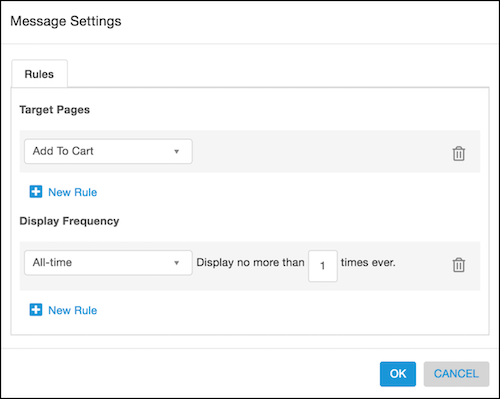
Display Frequency:
- To show the message only one time for all time, select **All-time** from the dropdown and enter 1 in the field for **Display no more than \_\_ times ever**.
- To show the message only one time for the visit, select **Current Visit** from the dropdown and enter 1 in the field for **Display no more than \_\_ times per visit**.
- To show the message only one time every three days, select **Interval** from the dropdown and enter 3 in the field for **Display no more than one time every \_\_ days**.