
You can use a Mobile In-App Message campaign to build and deploy messages within mobile apps. Mobile In-App Message campaigns are similar to the infobar messages you can add to your website. You build, manage, and deploy Mobile In-App Message campaigns from within Personalization so you get the same real-time data and personalization you rely on with your other campaigns. You don't need an engineer's help or App Store approval to deploy new or changed messages.
Required Editions
| Available in: Premium Edition |
| Permissions Needed | |
|---|---|
| To create or edit Mobile In-App Message campaigns: | A role with Campaign Create/Edit permissions |
| To publish or delete Mobile In-App Message campaigns: | A role with Campaign Publish/Delete permissions |
- In the Channels & Campaigns section of the main navigation, select Mobile | In-App Message Campaigns.
- Click New Campaign.
-
In the Preview area, select the following settings.
Setting Description Platform Select iOS or Android. Devices Select from iPhones, iPads, and various Android devices. Layout Select Portrait or Landscape. - Set the Zoom: 20–100% or Fit to Screen.
-
In the Message Interaction area:
- Choose message location: Top or Bottom
- Set the number of Tappable Areas, which can the set to Whole Message (if the user taps anywhere on the message, redirect to a target URL), 1 Button (tapping a single button will redirect to the target url), and 2 Buttons, (by the user can be redirected with each button having a targeted URL).
- Enter the message Title to display at the top of the message.
- To generate dynamic fields, such as username or total price, click Dynamic+.
- Enter the message Body.
- Configure the look of the message with Border Width (px), Border Color (hex), Corner Radius (px), and Background (hex).
- Enter the Links To URL parameters, as necessary.
-
For 1 Button or 2 Button messages only:
- Enter the Button Text.
- Configure Button Styles with Text Color (hex), Border Width (px), Corner Radius (px), Border Color (hex), and Background (hex).
- Click Save.
- Implement targeting rules. For more information, see Add Mobile Campaign Targeting Rules and Add Mobile Message Targeting Rules.

Example
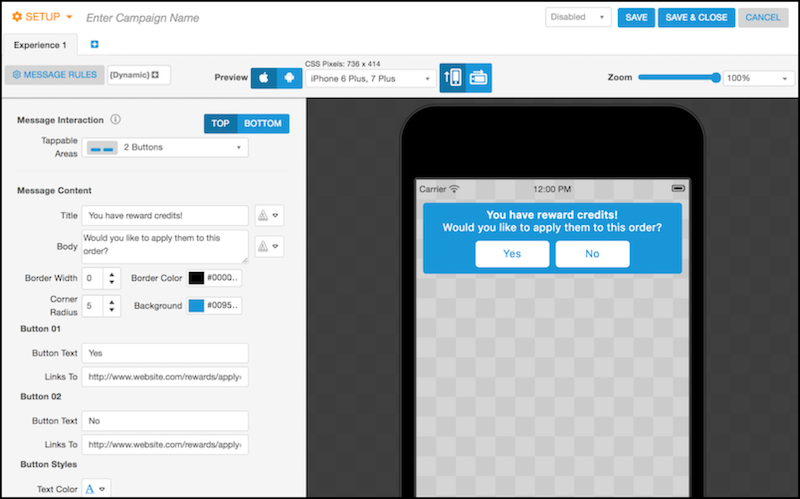
This example contains static message title and a message body text. Alternatively, you can add dynamic fields to customize the text. For example, you can generate the number of reward credits using a dynamic field that pulls data from Salesforce.