---
schema_version: "1"
id: ff4628ccf4e36da284d21739caa186e8d84aa20939bc502aa44e377422992817
title: Create a Mobile In-App Message Campaign
collection: admin
version: current
locale: en-us
portal_url: https://docs.salesforce.com/admin/current/en-us/mktg/264-0-0/mc_pers_mobile_campaign_in_app_message.md
canonical_url: https://help.salesforce.com/s/articleView?id=mktg.mc_pers_mobile_campaign_in_app_message.htm&release=264.0.0&type=5
source_site: help.salesforce.com
content_type: documentation
content_hash: 5515859a0597c4c6801779b95ba51de38fd504bce1d52b06f8529fc7118e79ca
description: You can use a Mobile In-App Message campaign to build and deploy messages within mobile apps. Mobile In-App Message campaigns are similar to the infobar messages you can add to your website. You build, manage, and deploy Mobile In-App Message campaigns from within Personalization so you get the same real-time data and personalization you rely on with your other campaigns. You don't need an engineer's help or App Store approval to deploy new or changed messages.
products:
- Marketing
- Salesforce Personalization
release: "264"
---
# Create a Mobile In-App Message Campaign
You can use a Mobile In-App Message campaign to build and deploy messages within mobile apps. Mobile In-App Message campaigns are similar to the infobar messages you can add to your website. You build, manage, and deploy Mobile In-App Message campaigns from within Personalization so you get the same real-time data and personalization you rely on with your other campaigns. You don't need an engineer's help or App Store approval to deploy new or changed messages.
### Required Editions
Available in: Premium Edition
Permissions Needed
To create or edit Mobile In-App Message campaigns:
A role with Campaign Create/Edit permissions
To publish or delete Mobile In-App Message campaigns:
A role with Campaign Publish/Delete permissions
1. In the **Channels & Campaigns** section of the main navigation, select **Mobile** | **In-App Message Campaigns.**
2. Click **New Campaign**.
3. In the **Preview** area, select the following settings.
| Setting | Description |
| --- | --- |
| **Platform** | Select **iOS** or **Android**. |
| **Devices** | Select from iPhones, iPads, and various Android devices. |
| **Layout** | Select **Portrait** or **Landscape**. |
4. Set the **Zoom**: **20–100%** or **Fit to Screen**.
5. In the **Message Interaction** area**:**
1. Choose message location: **Top** or **Bottom**
2. Set the number of **Tappable Areas**, which can the set to **Whole Message** (if the user taps anywhere on the message, redirect to a target URL), **1 Button** (tapping a single button will redirect to the target url), and **2 Buttons**, (by the user can be redirected with each button having a targeted URL).
6. Enter the message **Title** to display at the top of the message.
7. To generate dynamic fields, such as username or total price, click **Dynamic+**.
8. Enter the message **Body**.
9. Configure the look of the message with **Border Width** (px), **Border Color** (hex), **Corner Radius** (px), and **Background** (hex).
10. Enter the **Links To** URL parameters, as necessary.
11. For 1 Button or 2 Button messages only:
1. Enter the **Button Text**.
2. Configure **Button Styles** with **Text Color** (hex), **Border Width** (px), **Corner Radius** (px), **Border Color** (hex), and **Background** (hex).
12. Click **Save**.
13. Implement targeting rules. For more information, see [Add Mobile Campaign Targeting Rules](https://help.salesforce.com/s/articleView?id=mktg.mc_pers_mobile_campaign_targeting_rules.htm&release=264.0.0&type=5 "Campaign-wide rules control the visibility of mobile campaigns based on things like segments, visit count and duration, and user actions. Set rules at the campaign level when you want to holistically control how a campaign displays.") and [Add Mobile Message Targeting Rules](https://help.salesforce.com/s/articleView?id=mktg.mc_pers_mobile_campaign_message_targeting_rules.htm&release=264.0.0&type=5 "After you create a Mobile In-App Message or Mobile Data campaign, you can add message rules and promote content in Message Rules. Message rules control when a mobile in-app message shows for a visitor. For example, show the message when a visitor takes a specific action. Or only show the message a certain number of times per visit, during a specific time period, or all of the time. Use Promoted Content to promote a specific item or multiple items either by selecting the item or by using Einstein Recipes algorithms or Einstein Decisions AI.").

Example
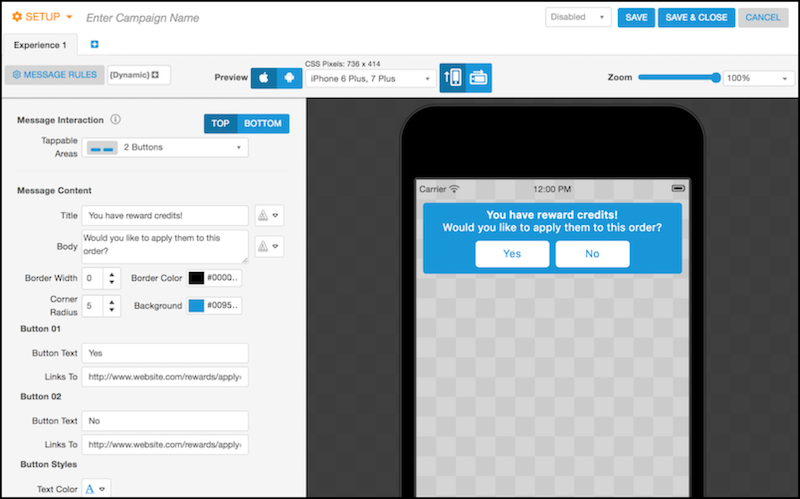
This example contains static message title and a message body text. Alternatively, you can add dynamic fields to customize the text. For example, you can generate the number of reward credits using a dynamic field that pulls data from Salesforce.