
Use a pivot table to explore and extract data. For example, you can get sends and open rates for all your emails to see how well a specific email performed. You can also export a pivot table locally or use it to create a scheduled report.
Required Editions
| Available in: Intelligence Reports and Intelligence Reports Advanced |
| User Permissions Needed | |
|---|---|
| To create or export pivot tables | Access, View & Export, Schedule, Create & Edit |
| To save, edit, and delete pivot tables | Create & Edit |
You can also create a pivot table directly from a widget in the Dashboards tab. For more information, see Create a Pivot Table from a Widget.
- In Analytics Builder, select Intelligence Reports.
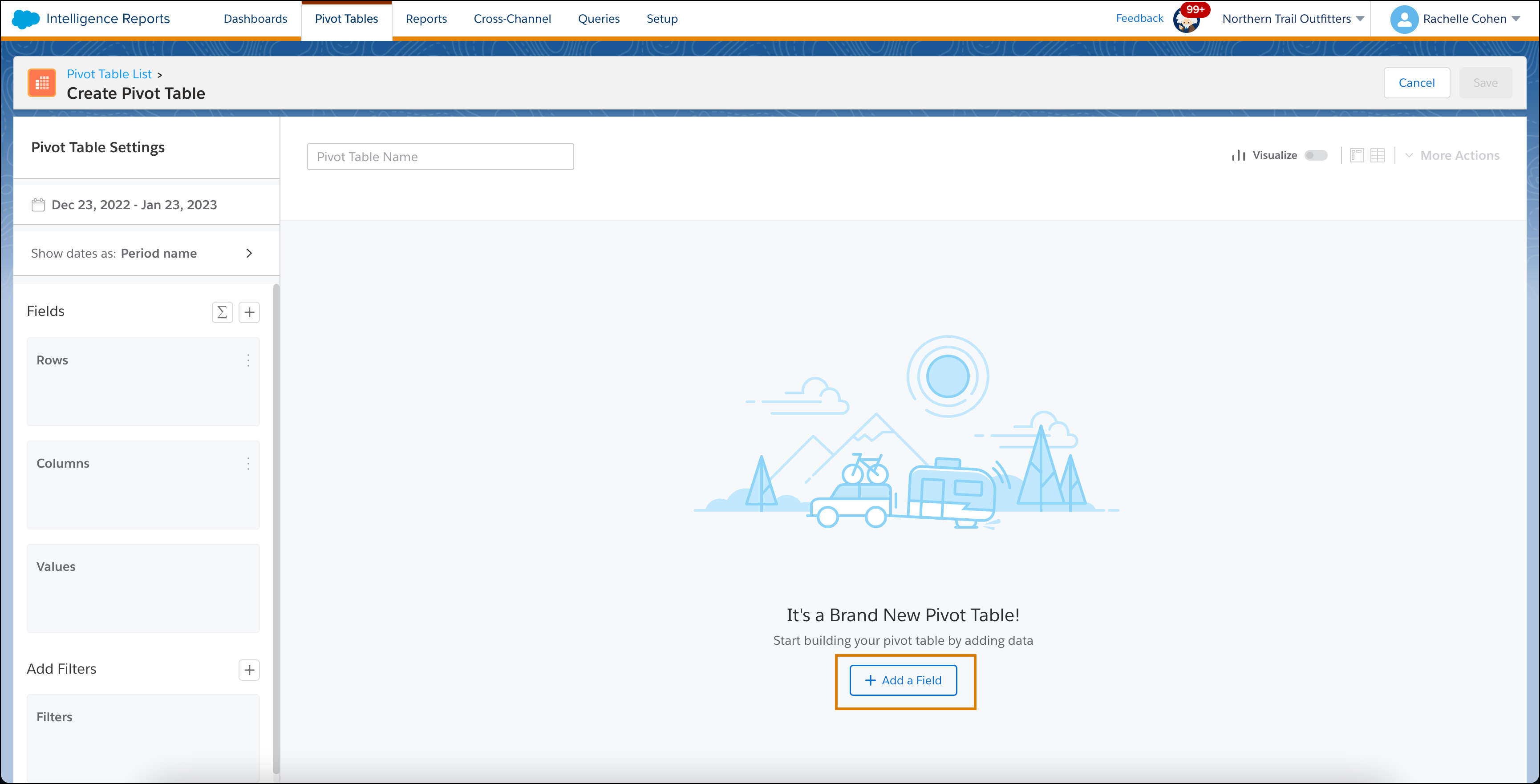
- On the Pivot Tables tab, click Create Pivot Table.
-
To add data to the pivot table, click + Add a Field.
When adding data, Dimensions are always placed in Rows or Columns, while Measurements are always placed in Values. The pivot table changes as you add or remove data.
- When you’re done adding data, close the Add Data window.
- In the Pivot Table Settings window, set the date range for the data that you want to view.
-
To apply a filter, in the Filters section, click the
+ icon and set your filters.
You can also apply a filter inside the pivot table in the column header.
- If you have Intelligence Reports Advanced, you can create and edit calculated fields by clicking the Add Calculated Field icon. For more information, see Add Data to Your Widget .
- Name the pivot table.
-
To visualize your data in a chart, turn on Visualize.
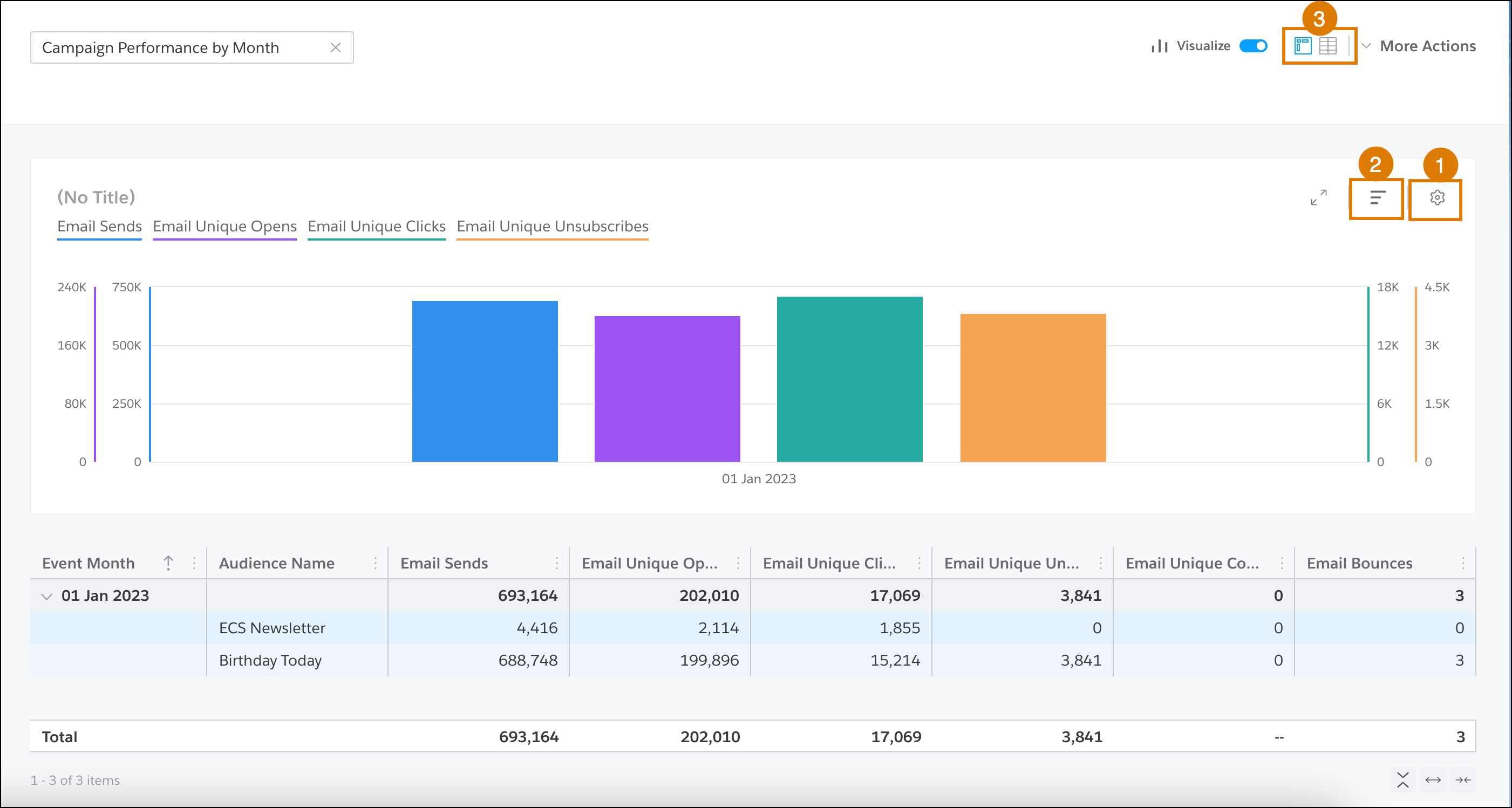
- To show specific dimensions and measurements, or to change the display, click Chart Settings (1).
- To change how the results are sorted, click Chart Top and Sorting (2).
- To view the pivot table as a flat table, click the flat table icon (3).
- To save, export, or download your pivot table, click More Actions.
-
Save your work.
The new pivot table appears in the Pivot Tables list, and you can edit, delete, and export it.