---
schema_version: "1"
id: a8cbe75d7a1ae9ef748a84a521861ff75d26f1bca4564304950f5219d601da5b
title: Create a Pivot Table in Intelligence Reports
collection: admin
version: current
locale: en-us
portal_url: https://docs.salesforce.com/admin/current/en-us/mktg/264-0-0/mc_dat_create_a_pivot_table.md
canonical_url: https://help.salesforce.com/s/articleView?id=mktg.mc_dat_create_a_pivot_table.htm&release=264.0.0&type=5
source_site: help.salesforce.com
content_type: documentation
content_hash: 95f399dbee5ad0fd89c4c183b39faed930c134a806cc2026becf2b18c3950510
description: Use a pivot table to explore and extract data. For example, you can get sends and open rates for all your emails to see how well a specific email performed. You can also export a pivot table locally or use it to create a scheduled report.
products:
- Marketing
- Marketing Cloud Intelligence
release: "264"
---
# Create a Pivot Table in Intelligence Reports
Use a pivot table to explore and extract data. For example, you can get sends and open rates for all your emails to see how well a specific email performed. You can also export a pivot table locally or use it to create a scheduled report.
### Required Editions
Available in: Intelligence Reports and Intelligence Reports Advanced
User Permissions Needed
To create or export pivot tables
Access, View & Export, Schedule, Create & Edit
To save, edit, and delete pivot tables
Create & Edit
You can also create a pivot table directly from a widget in the Dashboards tab. For more information, see [Create a Pivot Table from a Widget](https://help.salesforce.com/s/articleView?id=mktg.mc_dat_pivot_table_widget.htm&release=264.0.0&type=5 "Transform a widget into a pivot table to get insights on your data. You can customize the pivot table, apply filters, and even share it with others.").
1. In Analytics Builder, select **Intelligence Reports**.
2. On the Pivot Tables tab, click **Create Pivot Table**.
3. To add data to the pivot table, click **\+ Add a Field**.
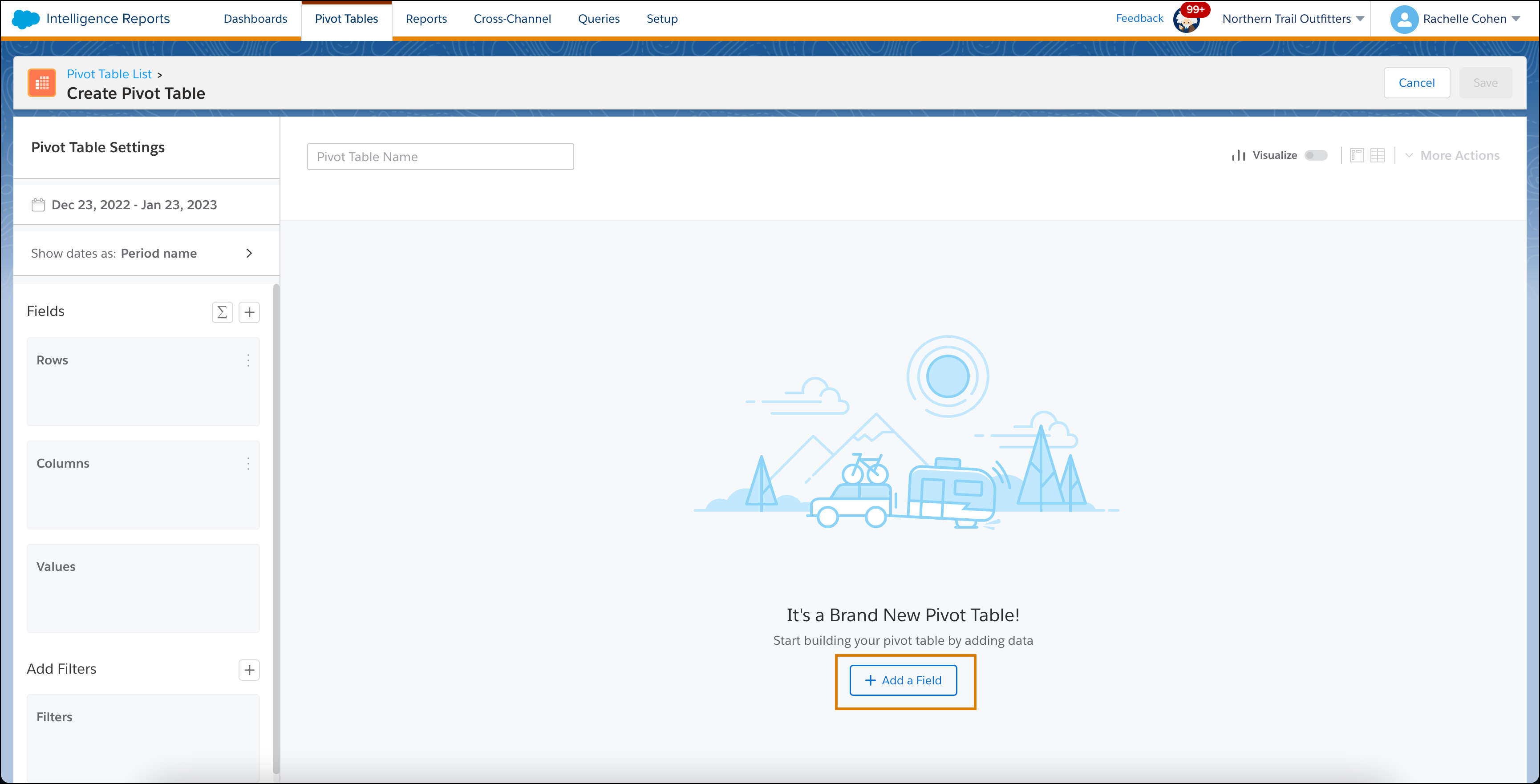
When adding data, Dimensions are always placed in Rows or Columns, while Measurements are always placed in Values. The pivot table changes as you add or remove data.
4. When you’re done adding data, close the Add Data window.
5. In the **Pivot Table Settings** window, set the date range for the data that you want to view.
6. To apply a filter, in the **Filters** section, click the **+** icon and set your filters.
You can also apply a filter inside the pivot table in the column header.
7. If you have Intelligence Reports Advanced, you can create and edit calculated fields by clicking the **Add Calculated Field** icon. For more information, see [Add Data to Your Widget](https://help.salesforce.com/s/articleView?id=mktg.mc_dat_dash_pages_widgets_data.htm&release=264.0.0&type=5 "You can add data to your widget by selecting the measurements and dimensions you want to display. This step is mandatory because you can’t save the widget without data.") .
8. Name the pivot table.
9. To visualize your data in a chart, turn on **Visualize**.
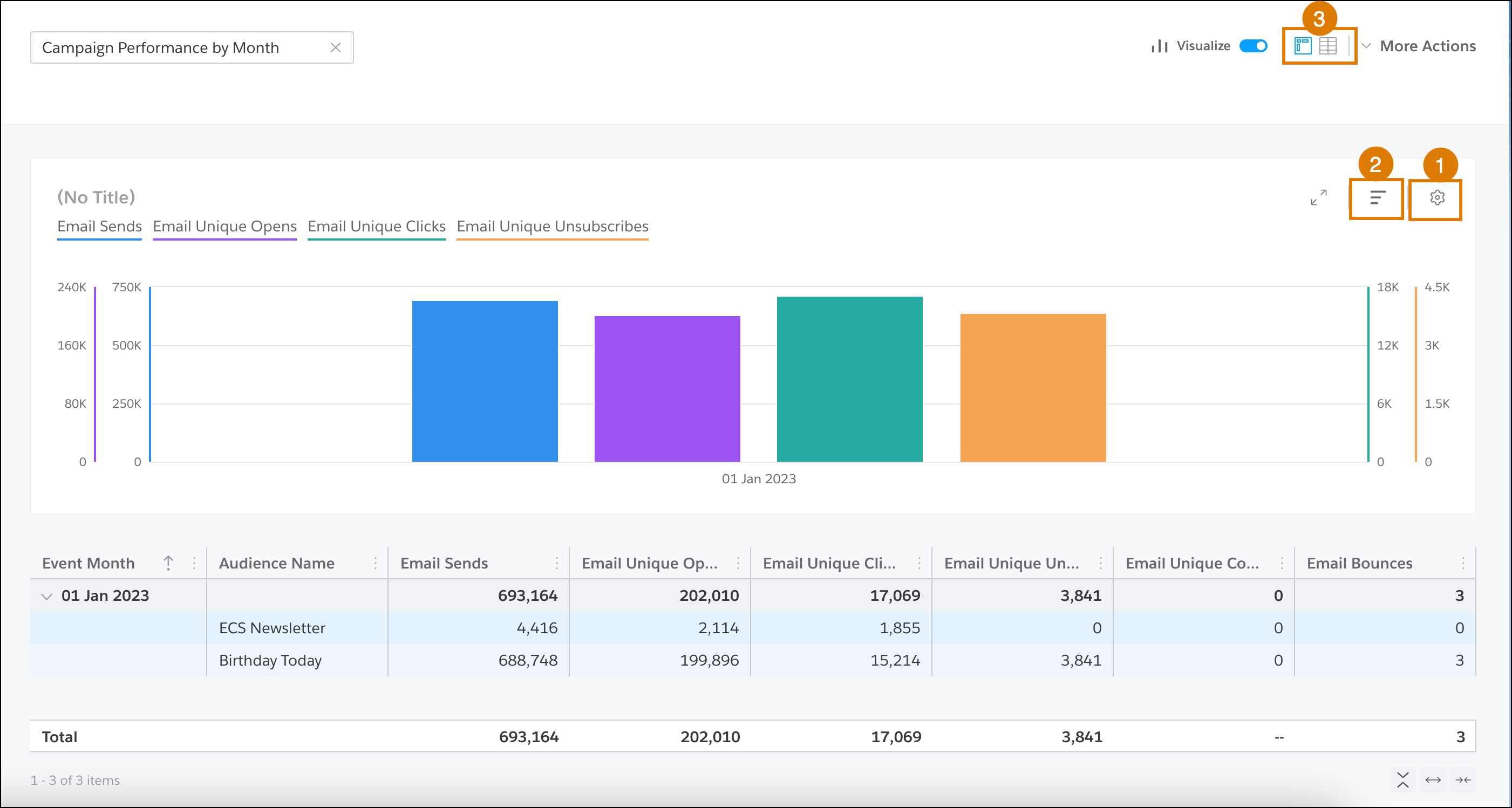
- To show specific dimensions and measurements, or to change the display, click **Chart Settings** (1).
- To change how the results are sorted, click **Chart Top and Sorting** (2).
- To view the pivot table as a flat table, click the flat table icon (3).
10. To save, export, or download your pivot table, click **More Actions**.
11. Save your work.
The new pivot table appears in the Pivot Tables list, and you can edit, delete, and export it.