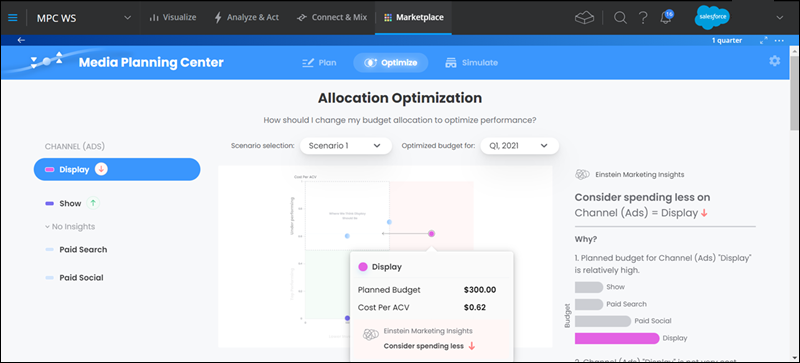
The Optimize section looks at different entities in terms of past performance and
planned budget. It then recommends how you can change your allocated budget to improve
performance. It uses a scatter plot quadrant display, which shows a selected KPI against a certain
dimension associated with the KPI in question.
Required Editions
| User Permissions Needed |
| To run Marketplace apps: |
Admins, Power Users, or Viewers |
Using EMI Einstein Marketing Insights, you get a further graphical display of the relativity
analysis between the entities in each category. For example, how the selected entity compares to
all other entities in its category in terms of cost-effectiveness and size of the budget.
-
In Marketing Cloud Intelligence, on the Marketplace tab, select
Apps.
-
Click Installed Solutions, and then select the Media
Planning Center app.
-
Select the Optimize tab.
-
If you define more than one scenario, change the scenario to see the recommendations for
that scenario and year.
-
On the right-hand side view the recommendations. In this example, it’s recommended you
spend less on Display Ads since your planned budget was relatively high. Display Ads aren’t
cost effective when looking at spend and performance from the last 12 months.
-
To view a further drill-down, scroll down the page.
You can use these recommendations to reallocate the budget. You can reduce the budget from
an entity that’s budgeted too high and increase it if it’s too low.