
If an app fails during installation you can explore and find out why this happened. You can see which processes must be fixed to install the app, and those that can be fixed at a later date.
Required Editions
| User Permissions Needed | |
|---|---|
| To fix a failed app: | Admin |
To help you understand the different failed processes and which must be fixed, these sections are available:
- Red - (Required Fixes) Fixes are required in order to install the app successfully.
- Orange - (Recommended Fixes) It’s recommended you fix the failed processes.
- Green - (Successful Jobs) Shows all processes that ran successfully.
- Access the Marketplace main page from the Marketplace tab in Marketing Cloud Intelligence.
-
Click Go to Installed Solutions.
If an app failed, the status appears as Failed.

-
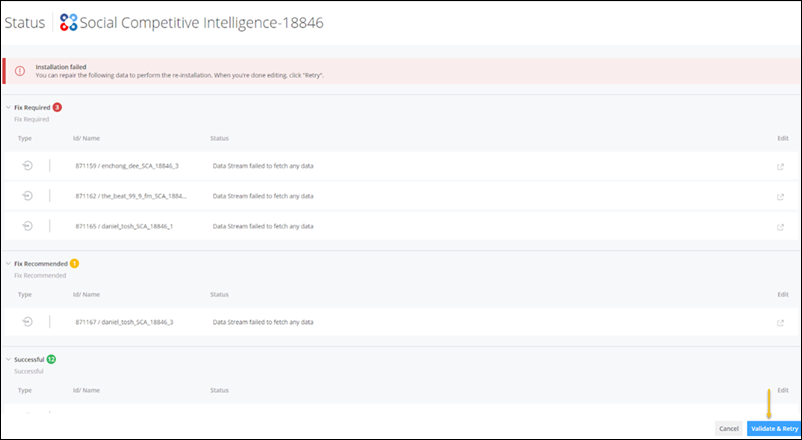
To view details as to why the app failed, click on the app.
In this example, there are a few required fixes, and one recommended fix.
-
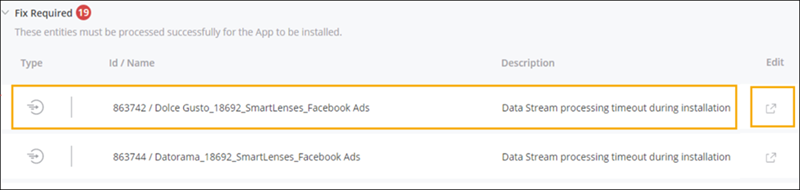
To fix this app, you must go to the three data streams that failed, and fix them. Go to the
row of the failed process and then click Edit.
- You can also fix the recommended data stream that failed, but it isn’t mandatory.
- When you’re done fixing the failed processes, click Validate & Retry. If the failed processes are fixed, the app installs successfully.