Manage and Reset Multi-Factor Authentication Settings in Marketing Cloud Intelligence at the
User Level
All users must have a registered MFA method to access the Marketing Cloud
Intelligence platform directly. Admins can reset an MFA recovery process for users that lost, want
to change or add an authentication method. Users can also reset MFA from their Profile.
Required Editions
| User Permissions Needed |
| To manage and reset MFA settings: |
Admin with Manage Account Users permissions |
-
To the right of the navigation bar, click the dropdown arrow, and then click
Manage Users.
-
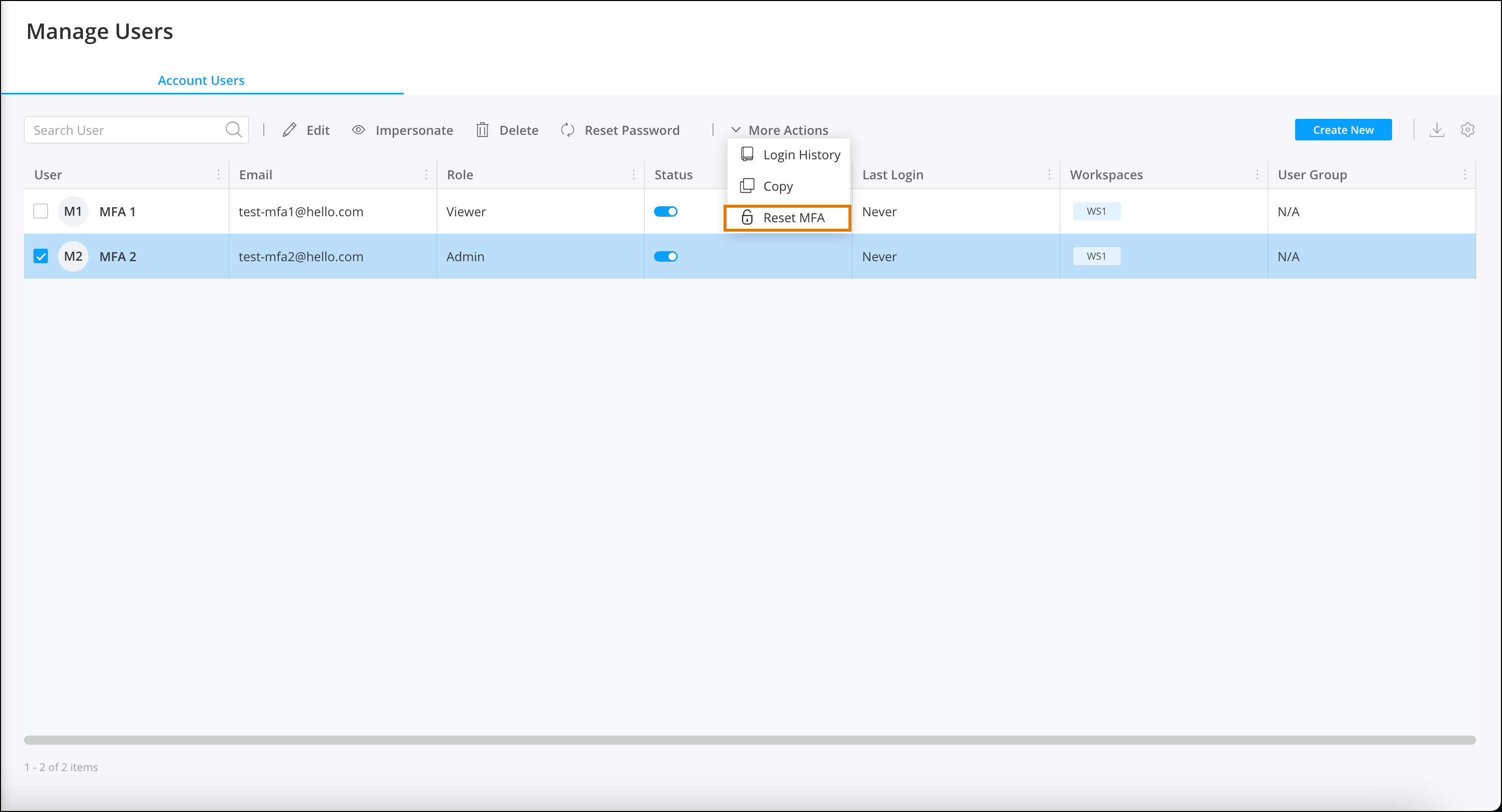
Select the user, click More Actions, and then click Reset
MFA.
The user is prompted to register a new verification method the next time they log in.
Recovery can be reset for one user at a time.
-
To add the MFA column to the user table, click the settings icon, then click
Show / Hide columns, and select MFA.
-
There are three MFA statuses available.
-
Registered—the user successfully registered an authentication
method and uses MFA to log into Intelligence.
-
Enabled—the user is required to use MFA. In the next login the
user is prompted to register for MFA.
-
Disabled—the user isn’t utilizing MFA to log into Intelligence.
For example, a user using SSO to log into Intelligence.