
The pivot transformer can transform values from selected columns into new individual columns, which then contain aggregated values for the measurements.
Required Editions
| User Permissions Needed | |
|---|---|
| To apply transformers: | Admin |
- From the Connect & Mix tab, select Data Streams, and then Data Streams List.
- Create a data stream, or edit an existing one.
- In the Preview Source screen, click Edit Transformers.
- In the Add Transformers area, next to the Pivot Transformer, click the blue plus icon.
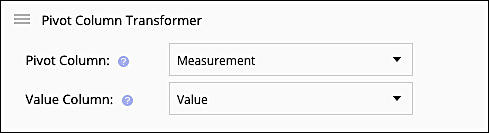
- In the Pivot Column field, select the column that you want to serve as the X. You can only select one column.
- In the Value Column field, select the column that you want to serve as the Y. You can only select one column.
- Click Done.
Example
Original file:
| Day | Measurement | Value |
|
3/5/2017 |
Media Cost |
$43.50 |
|
3/5/2017 |
Impressions | 300 |
|
4/5/2017 |
Media Cost |
$37.20 |
|
4/5/2017 |
Impressions |
260 |
|
5/5/2017 |
Media Cost |
$52.00 |
|
5/5/2017 |
Impressions | 400 |
The pivot transformer applied to the file:
The result:
|
Day |
Impressions |
Media Cost |
|
3/5/2017 |
300 |
$43.50 |
|
4/5/2017 |
260 |
$37.20 |
|
5/5/2017 |
400 |
$52.00 |