When you configure headless registration for an off-platform app, you can customize the
one-time password (OTP) email that users receive to verify their identity. Edit the default email
template to match your company’s branding. Keep in mind that this email template is only for
headless registration in an app outside of the Salesforce platform. It isn’t designed for users
registering or logging in to an Experience Cloud site.
Required Editions
| Available in: both Salesforce Classic (not available in all orgs) and Lightning
Experience |
| Available in: Enterprise, Unlimited, and Developer
Editions |
| User Permissions
Needed |
| To customize or publish an Experience Cloud site: |
- Create and Set Up Experiences AND View Setup and Configuration AND be a member
of the site
OR
- View Setup and Configuration AND be a member of the site AND have appropriate
role-based site access
|
-
From Setup, in the Quick Find box, enter Sites, and then select
All Sites. Next to the Experience Cloud site for your Headless Identity
implementation, click Workspaces.
-
Select Administration, and then select
Emails.
-
Under Email Templates, next to One-Time Password for Headless Registration, click
 , and then select
Experience Cloud: One-Time Password Email for Headless Registration
Verification.
, and then select
Experience Cloud: One-Time Password Email for Headless Registration
Verification.
-
Save your changes.
-
To customize the email, edit the template.
-
From Setup, enter Email Templates in the Quick Find box, and
select Classic Email Templates.
-
Next to Experience Cloud: One-Time Password Email for Headless Registration Verification,
select Edit.
-
Edit the text in the email body.
-
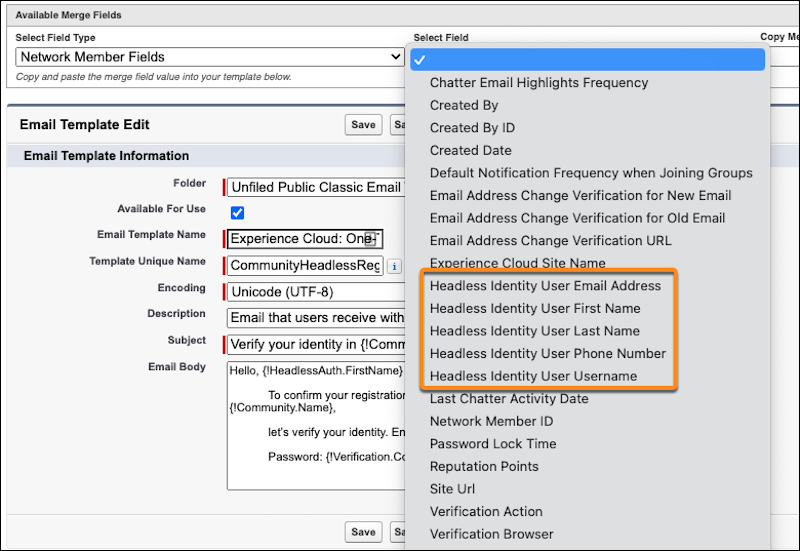
To add more fields to the email, copy merge field values into the template. Under
Available Merge Fields, select a field type, select a field, and then copy and paste the
merge field value into the email body.
For merge fields specific to Headless Identity, select
Network Member
Fields for the field type.
-
Save your changes.

