
Give each library a unique look by branding it with an image.
Required Editions
| Available in: Lightning Experience |
| Available in: Professional, Enterprise, Performance, and Unlimited Editions |
| User Permissions Needed | |
|---|---|
| To customize a library: |
Manage Salesforce CRM Content OR Manage Library |
Library users can identify libraries at a glance without having to figure out which library to access. Library administrators can change images as libraries evolve or switch off branding.

-
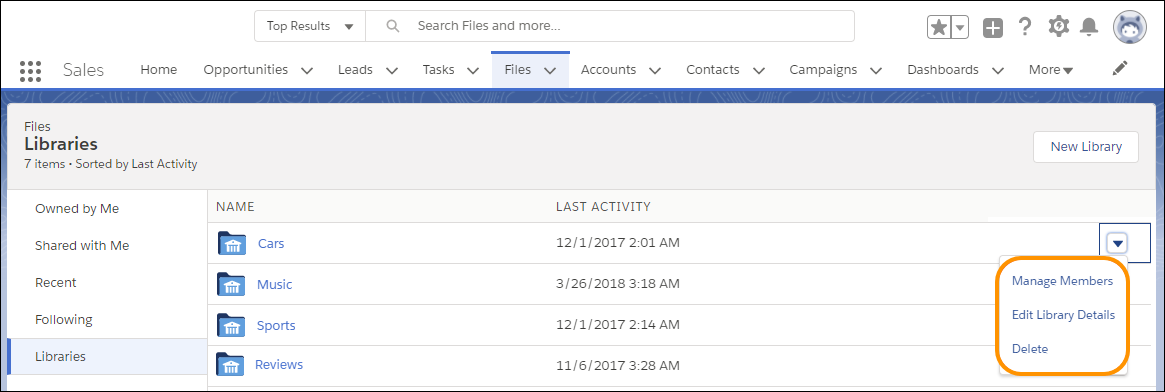
To add a custom library image, from Files Home, click the dropdown to the right of a
library, and choose Edit Library Details.
-
Click Upload Image under Library Image. For best results, choose an
image in a 16:9 aspect ratio (for example, 480 pixels by 270 pixels).
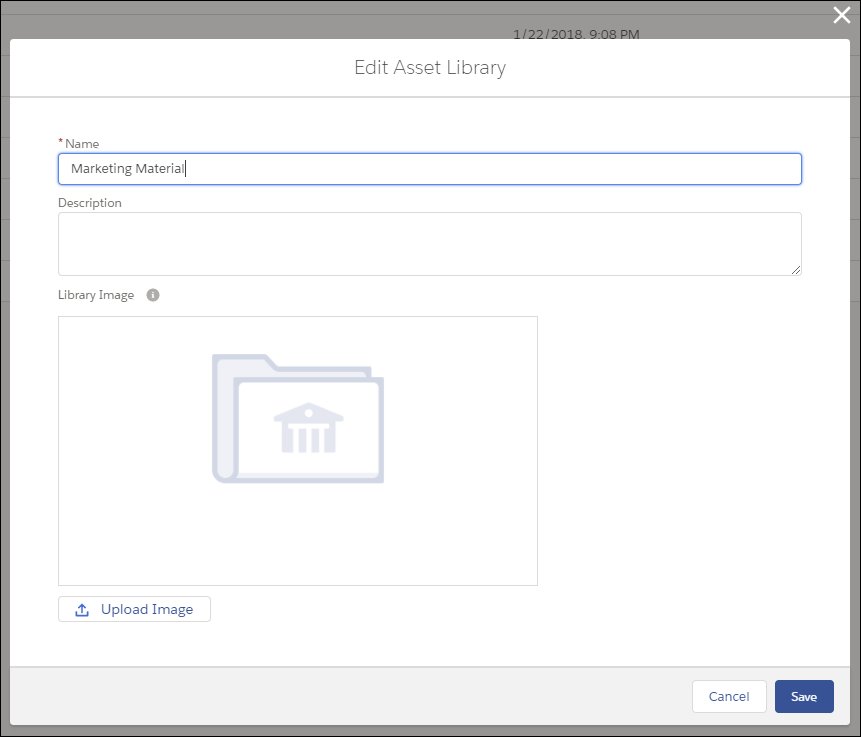

Note Branded library images are visible only in the desktop Libraries component tile view.
Depending on their permissions, some external users can see library asset images, even if
they’re not library members. Choose images that you’d like everyone to see. You can remove
custom images anytime. If you don’t add a custom image, the default library image appears on the
folder.