---
schema_version: "1"
id: 1a5ed960b551c657f14dd04ee3d7ae46abbad6f81f4a7c1283a416d04ef7d353
title: Customize Experience Cloud Site Libraries with Images
collection: admin
version: current
locale: en-us
portal_url: https://docs.salesforce.com/admin/current/en-us/experience/264-0-0/networks_files_customize_libraries.md
canonical_url: https://help.salesforce.com/s/articleView?id=experience.networks_files_customize_libraries.htm&release=264.0.0&type=5
source_site: help.salesforce.com
content_type: documentation
content_hash: ed2e00091e23b191a8738153a386717728a517345c9714e5837e3e95609df176
description: Give each library a unique look by branding it with an image.
products:
  - Experiences
release: "264"
---
# Customize Experience Cloud Site Libraries with Images

Give each library a unique look by branding it with an image.

### Required Editions

<table class="slds-table slds-table_bordered slds-max-medium-table_stacked slds-m-bottom_small edition"><colgroup><col></colgroup><tbody><tr class=""><td class="slds-cell-wrap" style="vertical-align:top;">Available in: Lightning Experience</td></tr><tr class=""><td class="slds-cell-wrap" style="vertical-align:top;">Available in: <strong>Professional</strong>, <strong>Enterprise</strong>, <strong>Performance</strong>, and <strong>Unlimited</strong> Editions</td></tr></tbody></table>

<table class="slds-table slds-table_bordered slds-max-medium-table_stacked slds-m-bottom_small permission">
        <colgroup>
          <col style="width:50%">
          <col style="width:50%">
        </colgroup>
        <thead class="slds-text-title_caps ">
          <tr class="">
            <th scope="colgroup" class="slds-cell-wrap" colspan="2" style="text-align:center;vertical-align:top;" id="d79773e70">User Permissions Needed</th>
          </tr>
        </thead>
        <tbody>
          <tr class="">
            <td data-label="User Permissions Needed" class="slds-cell-wrap" style="vertical-align:top;" headers="d79773e70 ">To customize a library:</td>

            <td class="slds-cell-wrap" style="vertical-align:top;" headers="d79773e70 ">
              <p>Manage Salesforce CRM Content </p>
              <p>OR</p>
              <p style="margin-bottom:0;">Manage Library</p>
            </td>

          </tr>
        </tbody>
      </table>

Library users can identify libraries at a glance without having to figure out which library to access. Library administrators can change images as libraries evolve or switch off branding.
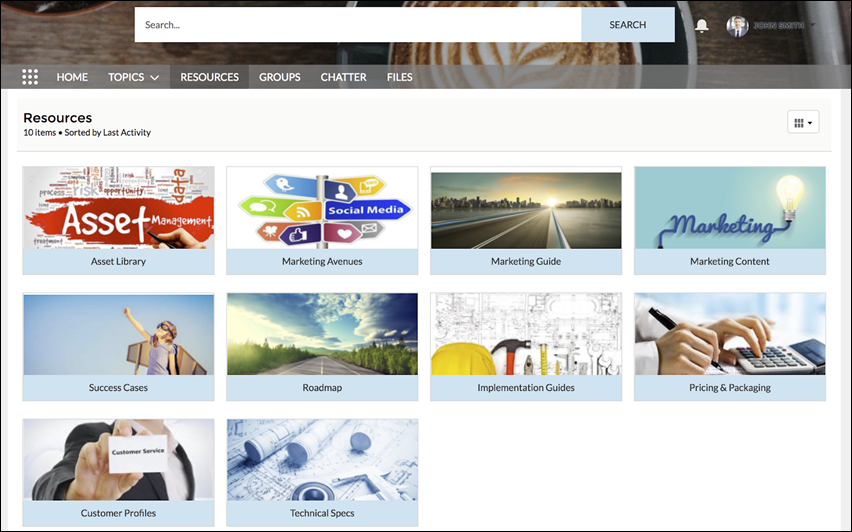
![Customize library folders.](https://sf-zdocs-cdn-prod.zoominsoftware.com/tdta-experience-communities-264-0-0-production-enus/bf7df212-91a1-4fa3-a007-4d6f3e3b470b/communities/images/files_library_branding.png)

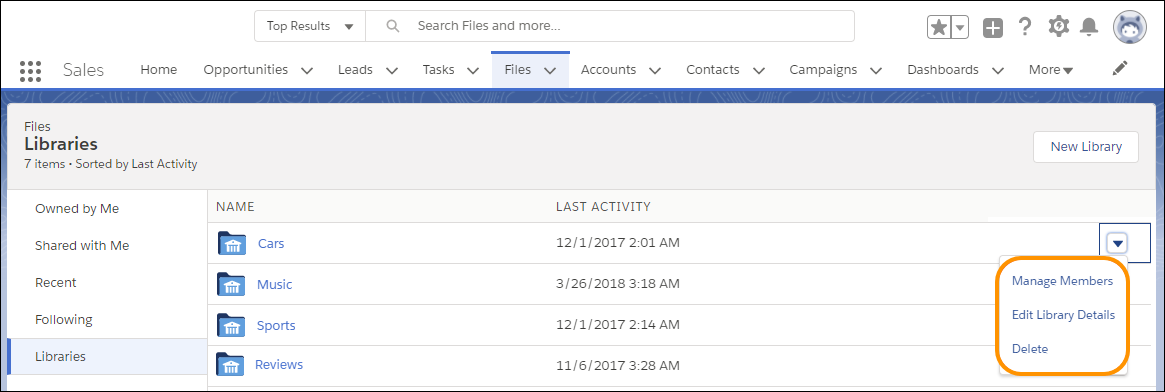
1. To add a custom library image, from Files Home, click the dropdown to the right of a library, and choose **Edit Library Details**.
    
    ![Edit a library from the dropdown on the right.](https://sf-zdocs-cdn-prod.zoominsoftware.com/tdta-experience-communities-264-0-0-production-enus/bf7df212-91a1-4fa3-a007-4d6f3e3b470b/communities/images/manage_libraries.png)
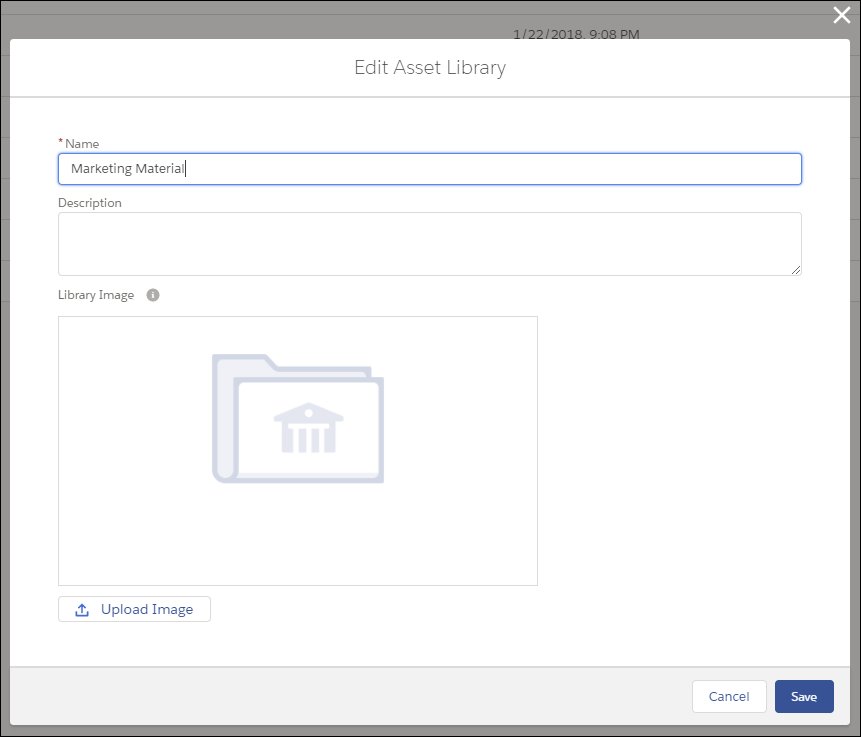
2. Click **Upload Image** under Library Image. For best results, choose an image in a 16:9 aspect ratio (for example, 480 pixels by 270 pixels).
    
    ![Add a custom image to a library.](https://sf-zdocs-cdn-prod.zoominsoftware.com/tdta-experience-communities-264-0-0-production-enus/bf7df212-91a1-4fa3-a007-4d6f3e3b470b/communities/images/files_home_edit_asset_library.png)

![Note](https://sf-zdocs-cdn-prod.zoominsoftware.com/tdta-experience-communities-264-0-0-production-enus/bf7df212-91a1-4fa3-a007-4d6f3e3b470b/images/icon_note.png)

Note Branded library images are visible only in the desktop Libraries component tile view. Depending on their permissions, some external users can see library asset images, even if they’re not library members. Choose images that you’d like everyone to see. You can remove custom images anytime. If you don’t add a custom image, the default library image appears on the folder.