
Nest content components within layout components on your LWR site to showcase more content from your Salesforce CMS. Create eye-catching content displays by nesting components that use data binding.
Required Editions
| Available in: Salesforce Classic and Lightning Experience |
| Available in: Enterprise, Performance, Unlimited, and Developer Editions |
| Applies to: LWR sites |
| User Permissions Needed | |
|---|---|
| To customize an LWR site: |
|
-
In Experience Builder, navigate to a page that’s already populated with a layout component
such as Banner or Tile.
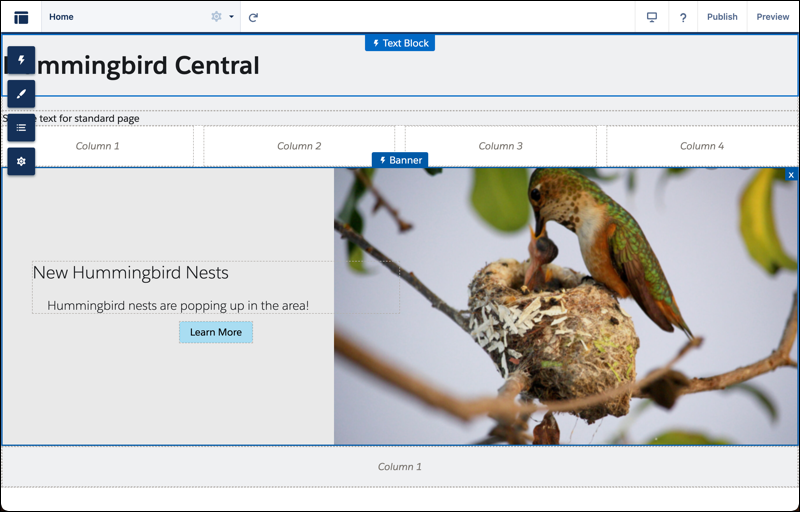
- To nest components, drag any content component, such as Image or Rich Content Editor, into the content region of the layout component (1).
-
In the component property panel for the nested component click Select
Content. Or if you added an Image, click Select Image from
CMS (2).
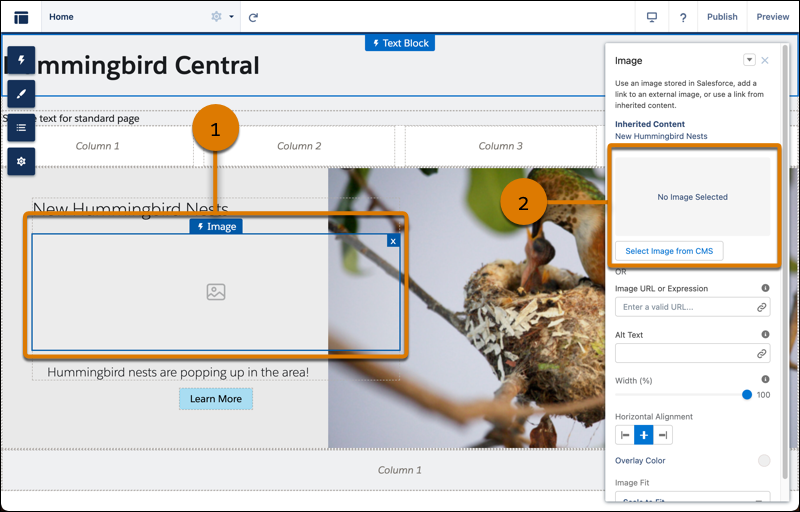
- Select the content to add from the list of published CMS content items, and save your changes.
- Click the component fields and map them to elements of your CMS content. Adjust settings as needed.
See data binding in action in the Did You Know Series (English Only).