---
schema_version: "1"
id: dde1b67d5939cced5191e1bb1413b92e44b19e121e0a9d365f8434ca3cce4f9d
title: Nest Content Components in Your LWR Site
collection: admin
version: current
locale: en-us
portal_url: https://docs.salesforce.com/admin/current/en-us/experience/264-0-0/networks_data_binding_nesting.md
canonical_url: https://help.salesforce.com/s/articleView?id=experience.networks_data_binding_nesting.htm&release=264.0.0&type=5
source_site: help.salesforce.com
content_type: documentation
content_hash: 5db596745c40cb3da62d31a084f36e7104023b4ac27764f04c67295114850ae6
description: Nest content components within layout components on your LWR site to showcase more content from your Salesforce CMS. Create eye-catching content displays by nesting components that use data binding.
products:
- Experiences
release: "264"
---
# Nest Content Components in Your LWR Site
Nest content components within layout components on your LWR site to showcase more content from your Salesforce CMS. Create eye-catching content displays by nesting components that use data binding.
### Required Editions
Available in: Salesforce Classic and Lightning Experience
Available in: Enterprise, Performance, Unlimited, and Developer Editions
Be a member of the site AND Create and Set Up Experiences
OR
Be a member of the site AND an experience admin, publisher, or builder in that
site
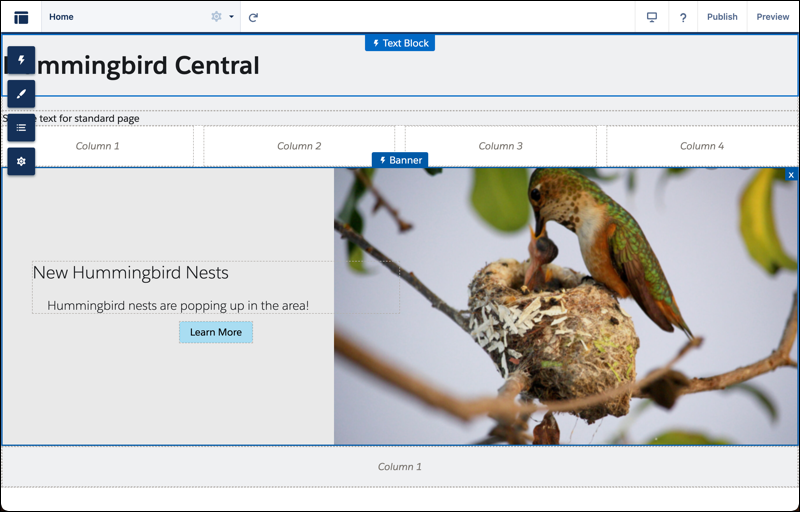
1. In Experience Builder, navigate to a page that’s already populated with a layout component such as Banner or Tile.
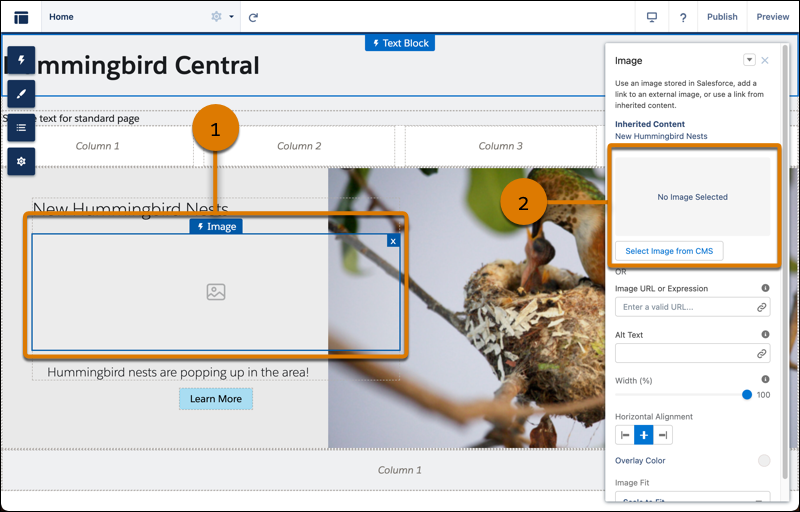
2. To nest components, drag any content component, such as Image or Rich Content Editor, into the content region of the layout component (1).
3. In the component property panel for the nested component click **Select Content**. Or if you added an Image, click **Select Image from CMS** (2).
4. Select the content to add from the list of published CMS content items, and save your changes.
5. Click the component fields and map them to elements of your CMS content. Adjust settings as needed.
See data binding in action in the [Did You Know Series (English Only)](https://salesforce.vidyard.com/watch/SUwcxSKrE2tNUXeBqtNWFG).
#### See Also
- [Add an Image from Salesforce CMS to Your LWR Site](https://help.salesforce.com/s/articleView?id=experience.networks_data_binding_images.htm&release=264.0.0&type=5 "Add an image from Salesforce CMS to your site page or add to a component that's populated with CMS content.")