
Data-bound components used on CRM record detail pages automatically populate with content saved in Salesforce CRM data in records. Map fields in the component property panel to fields in the CRM records.
Required Editions
| Available in: Salesforce Classic and Lightning Experience |
| Available in: Enterprise, Performance, Unlimited, and Developer Editions |
| Applies to: LWR sites |
| User Permissions Needed | |
|---|---|
| To customize an LWR site: |
|
- In Experience Builder, navigate to a detail page such as Record Detail, and click Components.
-
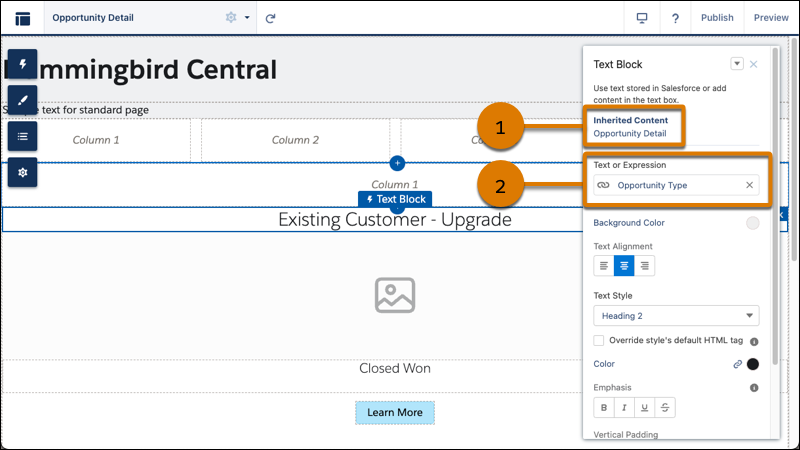
Drag a component that supports data binding, such as Banner, Card, Grid, Overlap, and Tile,
onto the page. In the component property panel, you already have content inherited from the
content pages (1).
 Note The Grid component can be added to any type of site page in addition to Record Detail pages
 -
In the component property panel, map the fields in the record to fields in the object
detail page (2). You can bind data from any field on the detail page, including custom
fields.
 To use a component on a detail page without binding content, click the chain link icon next to the data source to unlock the content. Add your own content, or paste in a valid URL in the field to link to static content.
To see data binding in CRM records in action, check out the Did You Know Series (English Only).