You can show different pages to different audiences.
Required Editions
| Available in: Salesforce Classic and Lightning Experience |
| Available in: Enterprise, Performance, Unlimited, and Developer Editions |
| Applies to: Aura sites |
| User Permissions Needed | |
|---|---|
| To customize or publish an Experience Cloud site: |
|
-
In Experience Builder, open the Pages menu in the top toolbar, hover over the page that
you want to edit, and click the Page Actions icon.
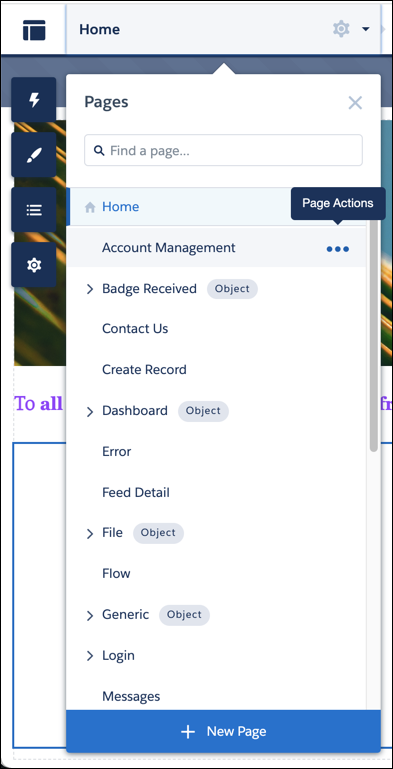
- Select Page Settings, and open the Page Variations tab.
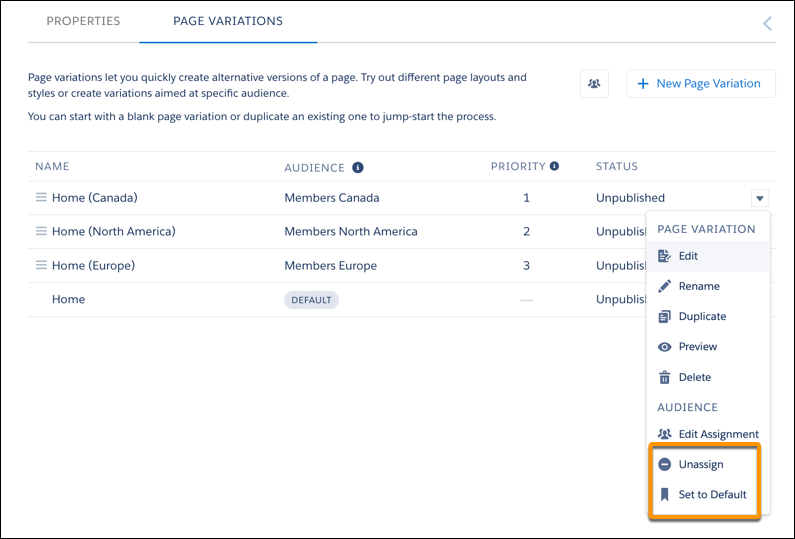
- Click the down arrow for the page variation that you want to work with, and select Assign or, if the page variation already has an assigned audience, select Edit Assignment.
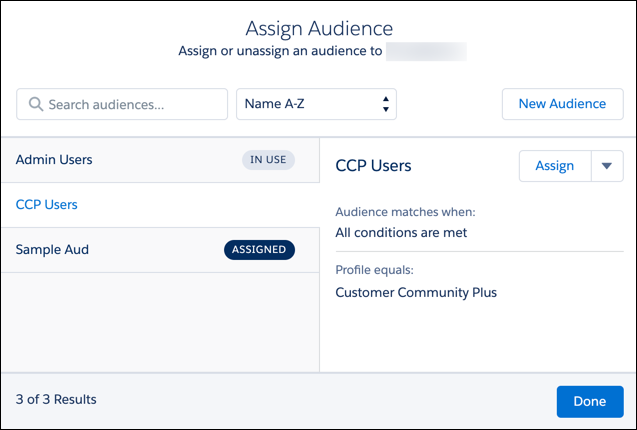
- In the Assign Audience window, click New Audience to crate an audience. Name the audience, set the criteria to define it, select the conditions when the audience matches, and click Save & Assign.
-
To assign an existing audience to the page variation, select the audience, click
Assign, and click Done.
- To make these changes visible to your site visitors, publish the site.
Each page has a default page version. Site visitors who don’t meet the criteria for an assigned audience see the default page. To set the audience visibility of a page variation to Default, in the Page Variation window, click the down arrow next to the page variation, and select Set to Default. You can’t edit the audience assignment of the default page variation.
When you want to hide a page variation from all site visitors, you can set its audience visibility to None. Click the down arrow next to the page variation, and select Unassign. A page variation that’s not assigned to an audience isn’t visible to any site visitors.