When you assign an audience to a page component, all users see the same page, but the
components that are visible on the page differ among user segments. For example, you have a page
that’s visible to site members and guest users, and you want your members to be able to post
questions and comments. You can add the Feed Publisher component to the page and assign this
component to an audience for site members only. Your members can see the component, and guest
users can’t.
Required Editions
| Available in: Salesforce Classic and Lightning Experience |
| Available in: Enterprise, Performance, Unlimited,
and Developer Editions |
| Applies to: Aura sites |
| User Permissions
Needed |
| To customize or publish an Experience Cloud site: |
- Create and Set Up Experiences AND View Setup and Configuration AND be a member
of the site
OR
- View Setup and Configuration AND be a member of the site AND have appropriate
role-based site access
|
-
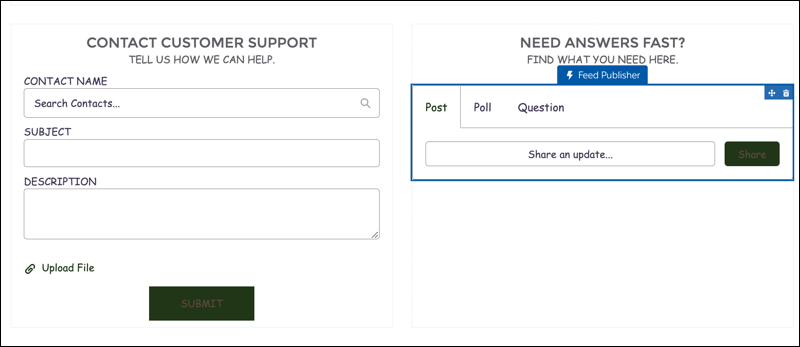
In Experience Builder, click the component that you want to work with. The blue outline
around the component indicates that it doesn’t have an assigned audience.
-
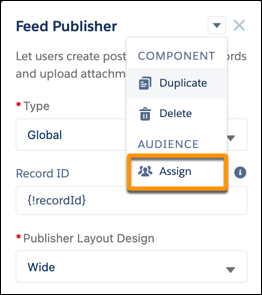
In the component’s properties panel, click the down arrow next to the component name,
and select Assign.
-
In the Assign Audience window, click New Audience. Name the
audience, set the criteria to define it, select the conditions when the audience matches,
and click Save & Assign.
-
To assign an existing audience to the component, select the audience, click
Assign, and click Done.
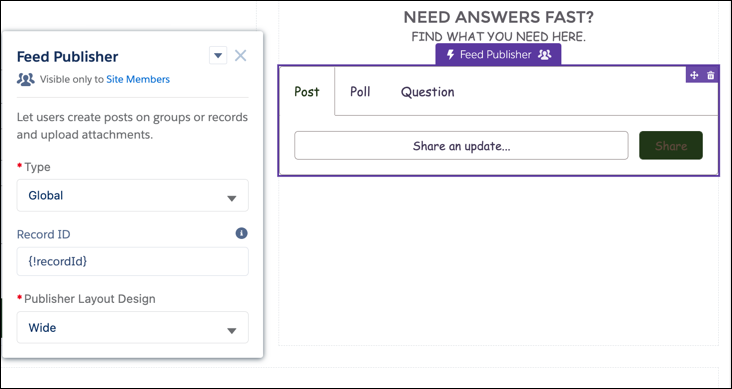
The component outline changes to purple and shows an audience icon to indicate that the
component has an audience assigned. In the component’s properties panel, the audience
icon and the name of the assigned audience appear with the component name. In Experience
Builder, a note at the top of the page alerts you that at least one component on the
page has a specific audience.
-
To make these changes visible to your site visitors, publish the site.