
Use the Visualforce Page component to add existing Visualforce pages to the pages of your Experience Builder site.
Required Editions
| Available in: both Salesforce Classic and Lightning Experience |
| Available in: Enterprise, Performance, Unlimited, and Developer Editions |
| User Permissions Needed | |
|---|---|
| To customize or publish an Experience Cloud site: |
|

Note The Visualforce Page component only supports the
navigateToURL function. Relative and absolute URLs are supported. Relative URLs
are relative to the site domain, and retain navigation history. External URLs—that is, URLs
that are outside the site domain—open in a separate browser window.-
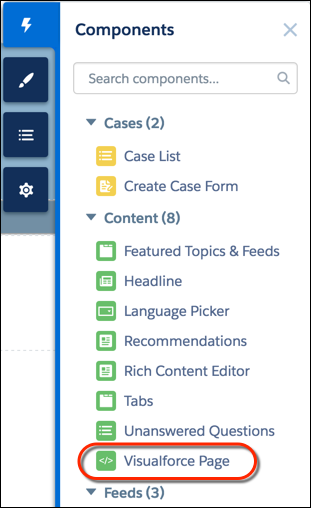
In Experience Builder, drag the
Visualforce Page component from the Components panel onto the page.
-
Edit the component to select the Visualforce page to use. If you installed the
Salesforce CPQ (Steelbrick) app, those pages are also available for selection here.
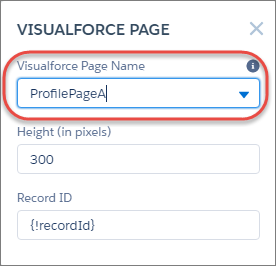
- Adjust the height as you like.
-
Optionally, specify a Record ID if the Visualforce page. Typically, the system
populates this value depending on context.
 Tip If the Visualforce page requires the Record ID from an object such as Account, create object pages for Account. Then drag the Visualforce Page component onto the object’s detail page. The Record ID field adjusts to the object’s ID.