---
schema_version: "1"
id: ac6f58051ece80a39ce22bd827143abf1f2379ea4c28826dc966f38d8395ea05
title: Visualforce Page Component
collection: admin
version: current
locale: en-us
portal_url: https://docs.salesforce.com/admin/current/en-us/experience/264-0-0/community_builder_visualforce_page_component.md
canonical_url: https://help.salesforce.com/s/articleView?id=experience.community_builder_visualforce_page_component.htm&release=264.0.0&type=5
source_site: help.salesforce.com
content_type: documentation
content_hash: 1ef2aa1363d803d082f479470374fb3125f25d082dd9e7ac565c3677a4a9a407
description: Use the Visualforce Page component to add existing Visualforce pages to the pages of your Experience Builder site.
products:
  - Experiences
release: "264"
---
# Visualforce Page Component

Use the Visualforce Page component to add existing Visualforce pages to the pages of your Experience Builder site.

### Required Editions

<table class="slds-table slds-table_bordered slds-max-medium-table_stacked slds-m-bottom_small edition"><colgroup><col></colgroup><tbody><tr class=""><td class="slds-cell-wrap" style="vertical-align:top;">Available in: both Salesforce Classic and Lightning Experience</td></tr><tr class=""><td class="slds-cell-wrap" style="vertical-align:top;">Available in: <strong>Enterprise</strong>, <strong>Performance</strong>, <strong>Unlimited</strong>, and <strong>Developer</strong> Editions</td></tr></tbody></table>

<table class="slds-table slds-table_bordered slds-max-medium-table_stacked slds-m-bottom_small permission">
        <colgroup>
          <col style="width:50%">
          <col style="width:50%">
        </colgroup>
        <thead class="slds-text-title_caps ">
          <tr class="">
            <th scope="colgroup" class="slds-cell-wrap" colspan="2" style="text-align:center;vertical-align:top;" id="d77404e70">User Permissions
              Needed</th>
          </tr>
        </thead>
        <tbody>
          <tr class="">
            <td data-label="User Permissions Needed" class="slds-cell-wrap" style="vertical-align:top;" headers="d77404e70 ">To customize or publish an Experience Cloud site:</td>

            <td class="slds-cell-wrap" style="vertical-align:top;" headers="d77404e70 ">
              <ul>
                <li>Create and Set Up Experiences AND View Setup and Configuration AND be a member
                  of the site<p>OR</p>
                </li>

                <li>View Setup and Configuration AND be a member of the site AND have appropriate
                  <a href="https://help.salesforce.com/s/articleView?id=experience.networks_access_control_overview.htm&amp;language=en_US" target="_blank">role-based site access</a>
                </li>

              </ul>
            </td>

          </tr>
        </tbody>
      </table>

![Note](https://sf-zdocs-cdn-prod.zoominsoftware.com/tdta-experience-communities-264-0-0-production-enus/bf7df212-91a1-4fa3-a007-4d6f3e3b470b/images/icon_note.png)

Note The Visualforce Page component only supports the `navigateToURL` function. Relative and absolute URLs are supported. Relative URLs are relative to the site domain, and retain navigation history. External URLs—that is, URLs that are outside the site domain—open in a separate browser window.

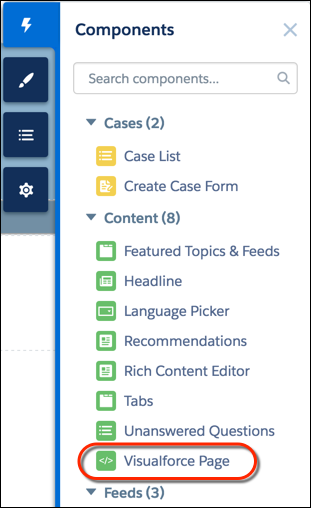
1. In Experience Builder, drag the Visualforce Page component from the Components panel onto the page.
    
    ![Visualforce page component in Components panel](https://sf-zdocs-cdn-prod.zoominsoftware.com/tdta-experience-communities-264-0-0-production-enus/bf7df212-91a1-4fa3-a007-4d6f3e3b470b/communities/images/community_builder_visualforce_page_component.png)
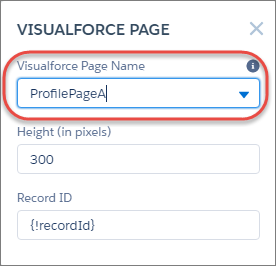
2. Edit the component to select the Visualforce page to use. If you installed the Salesforce CPQ (Steelbrick) app, those pages are also available for selection here.
    
    ![Visualforce Page properties](https://sf-zdocs-cdn-prod.zoominsoftware.com/tdta-experience-communities-264-0-0-production-enus/bf7df212-91a1-4fa3-a007-4d6f3e3b470b/communities/images/community_builder_visualforce_page_properties.png)
3. Adjust the height as you like.
4. Optionally, specify a Record ID if the Visualforce page. Typically, the system populates this value depending on context.
    
    ![Tip](https://sf-zdocs-cdn-prod.zoominsoftware.com/tdta-experience-communities-264-0-0-production-enus/bf7df212-91a1-4fa3-a007-4d6f3e3b470b/images/icon_tip.png)
    
    Tip If the Visualforce page requires the Record ID from an object such as Account, create object pages for Account. Then drag the Visualforce Page component onto the object’s detail page. The Record ID field adjusts to the object’s ID.