
Remove a site page or page variation that you no longer need by deleting it from the Page Action menu.
Required Editions
| Available in: both Salesforce Classic and Lightning Experience |
| Available in: Enterprise, Performance, Unlimited, and Developer Editions |
| User Permissions Needed | |
|---|---|
| To customize or publish an Experience Cloud site: |
|
Before you delete a page from your site, review Considerations for Page Hierarchy and URL Conflicts in Experience Builder. Keep in mind that you can’t delete:
- The default pages and objects that come with the template
- A page’s default page variation
- A parent page without deleting its subpages
- A custom object page without deleting its related object pages (detail, list, and related list)
To delete a page or page variation:
- In Experience Builder, open the Pages menu.
-
To access the Page Actions menu, click
 .
.
-
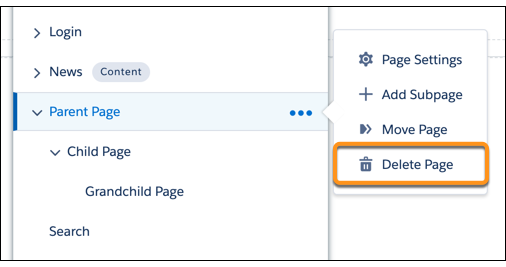
To delete a page, click Delete Page.
Deleting a page also deletes the subpages nested under it. For example, when you delete Parent Page, Child Page and Grandchild Page are also deleted:
To delete a subpage page in the page hierarchy, click
next to the specific page you want to delete. - To delete page variations (if available), open the Page Actions menu and click Page Settings.
- Open the Page Variations tab.
- Click the dropdown next to the page variation that you want to delete, then click Delete.