---
schema_version: "1"
id: a0a1f22deef1ba4964209b2d30fe64194120d9bb55b77bc16dac0516dddbb1e2
title: Delete a Page in Experience Builder
collection: admin
version: current
locale: en-us
portal_url: https://docs.salesforce.com/admin/current/en-us/experience/264-0-0/community_builder_delete_page.md
canonical_url: https://help.salesforce.com/s/articleView?id=experience.community_builder_delete_page.htm&release=264.0.0&type=5
source_site: help.salesforce.com
content_type: documentation
content_hash: 7c4fbe7b0066a49f6e78aef1243022dc92997730f7d3b7dc56ff990b4f754a6e
description: Remove a site page or page variation that you no longer need by deleting it from the Page Action menu.
products:
- Experiences
release: "264"
---
# Delete a Page in Experience Builder
Remove a site page or page variation that you no longer need by deleting it from the Page Action menu.
### Required Editions
Available in: both Salesforce Classic and Lightning Experience
Available in: Enterprise, Performance, Unlimited, and Developer Editions
User Permissions
Needed
To customize or publish an Experience Cloud site:
Create and Set Up Experiences AND View Setup and Configuration AND be a member
of the site
OR
View Setup and Configuration AND be a member of the site AND have appropriate
role-based site access
Before you delete a page from your site, review [Considerations for Page Hierarchy and URL Conflicts in Experience Builder](https://help.salesforce.com/s/articleView?id=experience.community_builder_page_management_considerations.htm&release=264.0.0&type=5 "When you create and organize pages in your Experience Builder site, some pages behave differently than others. Keep these page management considerations in mind when you use the Page Action menu."). Keep in mind that you can’t delete:
- The default pages and objects that come with the template
- A page’s default page variation
- A parent page without deleting its subpages
- A custom object page without deleting its related object pages (detail, list, and related list)
To delete a page or page variation:
1. In Experience Builder, open the Pages menu.
2. To access the Page Actions menu, click .
3. To delete a page, click **Delete Page**.
Deleting a page also deletes the subpages nested under it. For example, when you delete Parent Page, Child Page and Grandchild Page are also deleted:
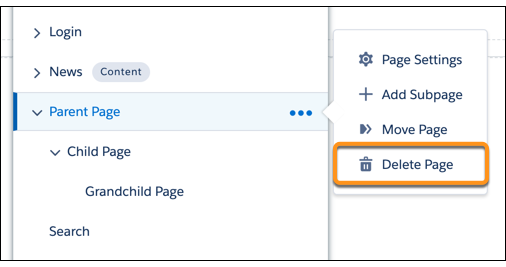
To delete a subpage page in the page hierarchy, click  next to the specific page you want to delete.
4. To delete page variations (if available), open the Page Actions menu and click **Page Settings**.
5. Open the Page Variations tab.
6. Click the dropdown next to the page variation that you want to delete, then click **Delete**.