
Quickly change the look of your Experience Builder site pages by switching to a different content layout. You can even create your own custom content layout components in the Developer Console and import them to use in your site.
Required Editions
| Available in: both Salesforce Classic and Lightning Experience |
| Available in: Enterprise, Performance, Unlimited, and Developer Editions |
| User Permissions Needed | |
|---|---|
| To customize or publish an Experience Cloud site: |
|

Tip When you set up a new page or page variation, use a flexible layout. These
highly customizable layouts are more adaptable than ready-to-use layouts, and you can
re-create most fixed layouts by using a flexible layout.
-
In Experience Builder, open the
page’s properties. Click
 beside the page on the top toolbar, or click
  | Page Settings beside the page in the Pages dropdown menu.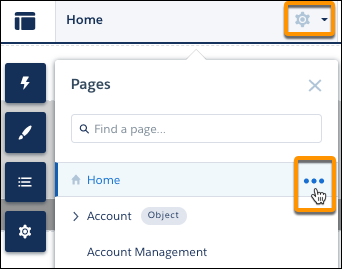
-
In the Layout section of Page Properties, click Change.
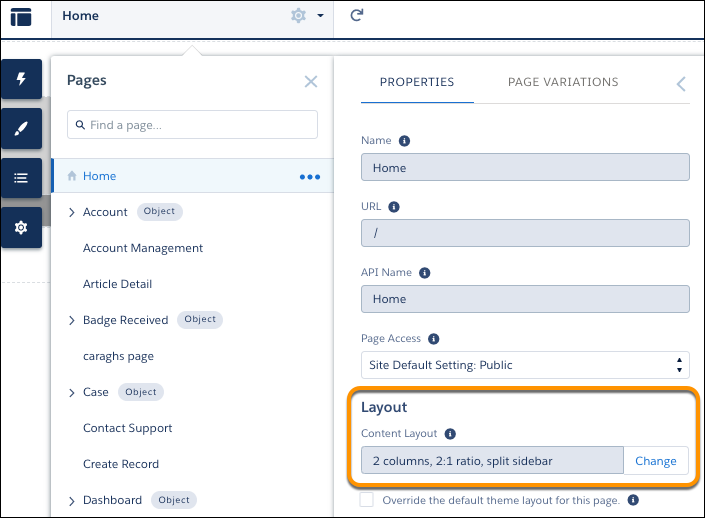 If a page variation is available, you can make it the active page by selecting the page variation. You can then change its content layout as required.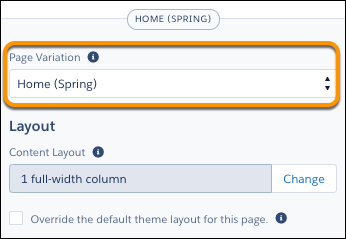
-
Select the new layout. If you created a custom content layout component, you see both
ready-to-use and custom content layouts displayed together.
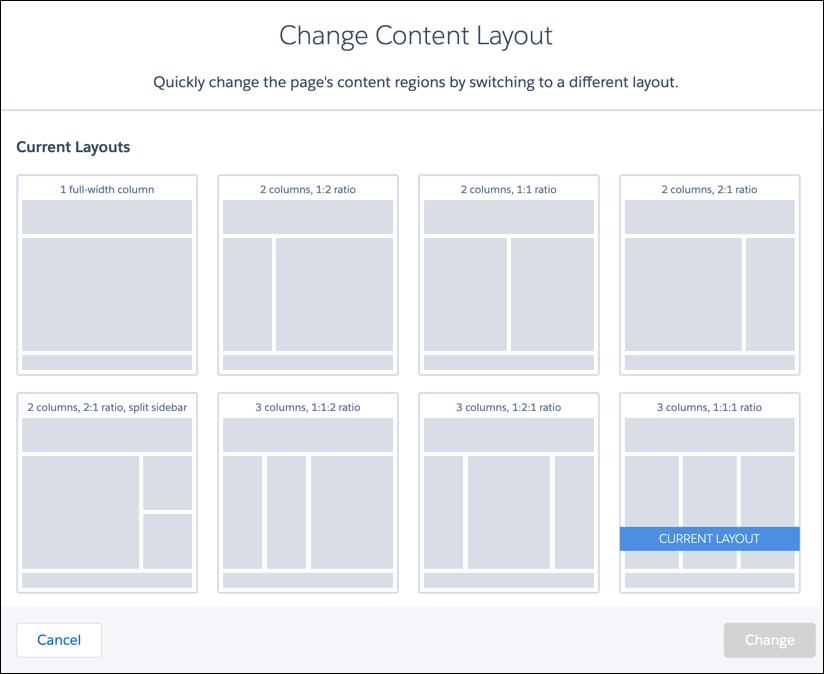
You can’t use Lightning web components with the 2 column, 2:1 ratio, split-sidebar fixed layout. To incorporate Lightning web components on a page with this layout, use a flexible layout to create a page or page variation that’s arranged the same way.
-
Click Change.
If the structure of the new layout is different from the current layout, some regions aren’t visible. However, the regions are still available and you can switch to a different layout at any time. If you change the layout of a default template page, the only way to revert to the original layout is to click Undo.