---
schema_version: "1"
id: 7fb9e33873a7bc3a391cf7283264a2d0c6124e396f5508f6a163c28d7fd5ea12
title: Change the Content Layout in Experience Builder
collection: admin
version: current
locale: en-us
portal_url: https://docs.salesforce.com/admin/current/en-us/experience/264-0-0/community_builder_change_layout.md
canonical_url: https://help.salesforce.com/s/articleView?id=experience.community_builder_change_layout.htm&release=264.0.0&type=5
source_site: help.salesforce.com
content_type: documentation
content_hash: 1da1a096e260877ad532809a42735c3d8796186e8b8d241cae5b7e170ed85cf5
description: Quickly change the look of your Experience Builder site pages by switching to a different content layout. You can even create your own custom content layout components in the Developer Console and import them to use in your site.
products:
- Experiences
release: "264"
---
# Change the Content Layout in Experience Builder
Quickly change the look of your Experience Builder site pages by switching to a different content layout. You can even create your own custom content layout components in the Developer Console and import them to use in your site.
### Required Editions
Available in: both Salesforce Classic and Lightning Experience
Available in: Enterprise, Performance, Unlimited, and Developer Editions
User Permissions
Needed
To customize or publish an Experience Cloud site:
Create and Set Up Experiences AND View Setup and Configuration AND be a member
of the site
OR
View Setup and Configuration AND be a member of the site AND have appropriate
role-based site access

Tip When you set up a new page or page variation, use a flexible layout. These highly customizable layouts are more adaptable than ready-to-use layouts, and you can re-create most fixed layouts by using a flexible layout.
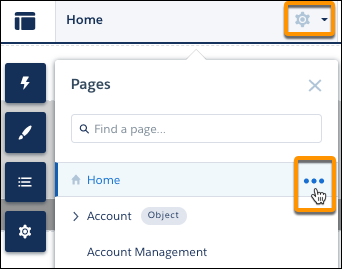
1. In Experience Builder, open the page’s properties. Click  beside the page on the top toolbar, or click **** | **Page Settings** beside the page in the Pages dropdown menu.
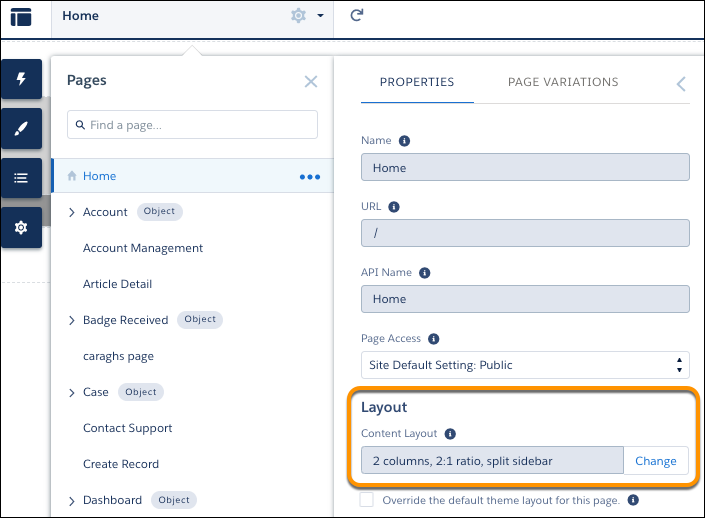
2. In the Layout section of Page Properties, click **Change**.
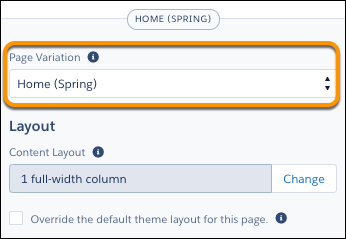
If a page variation is available, you can make it the active page by selecting the page variation. You can then change its content layout as required.
3. Select the new layout. If you created a custom content layout component, you see both ready-to-use and custom content layouts displayed together.
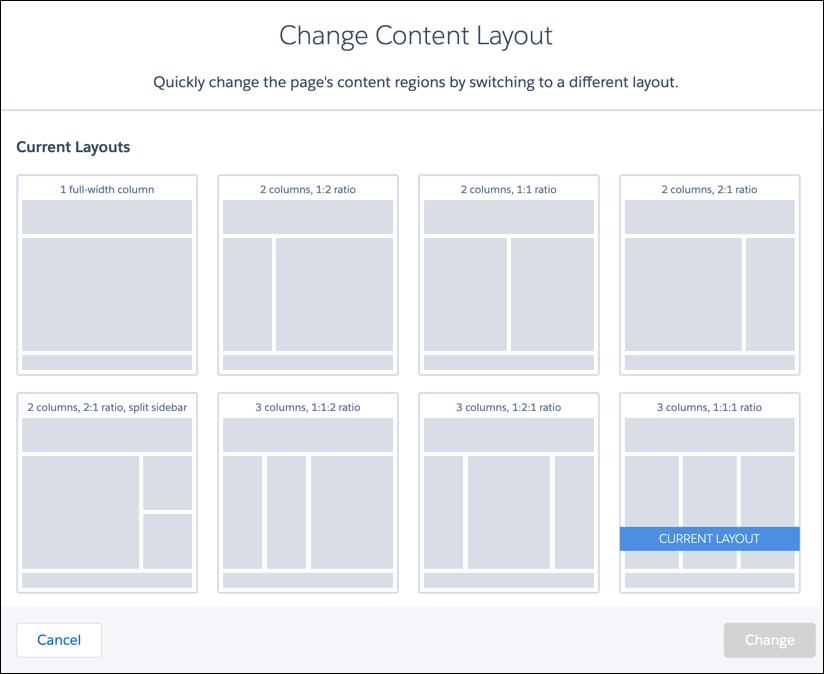
You can’t use Lightning web components with the 2 column, 2:1 ratio, split-sidebar fixed layout. To incorporate Lightning web components on a page with this layout, use a flexible layout to create a page or page variation that’s arranged the same way.
4. Click **Change**.
If the structure of the new layout is different from the current layout, some regions aren’t visible. However, the regions are still available and you can switch to a different layout at any time. If you change the layout of a default template page, the only way to revert to the original layout is to click **Undo**.
#### See Also
- [_Experience Cloud Developer Guide_: Create Custom Content Layout Components for Experience Builder](https://developer.salesforce.com/docs/atlas.en-us.communities_dev.meta/communities_dev/components_config_for_builder_layouts.htm)
- [Create a Flexible Layout](https://help.salesforce.com/s/articleView?id=experience.community_builder_flexible_layout.htm&release=264.0.0&type=5 "Build highly customized pages using flexible layouts. Create and resize columns within each section, then add and stack sections to build out the page. Bring it all to life with background images and color.")