
Add the File Privacy on Records option to the Edit File Details layout to let file owners control the visibility of files attached to records.
Required Editions
| Available in: Essentials, Group, Professional, Enterprise, Performance, Unlimited, Contact Manager, and Developer Editions |
| User Permissions Needed | |
|---|---|
| To customize Content Version layouts: | Customize Application |
If you don’t see the File Privacy on Records option, you can add it by customizing the Content Version page layout.

Note In Salesforce Classic, the File Privacy on Records option also appears on the content
detail page and in the content edit dialog. If a file is marked as private in Lightning
Experience, it’s also private in Salesforce Classic. This feature is also available in
Experience Cloud sites. Only admins and a file’s owner can change the value of File Privacy on
Records.
- From Setup, enter Object Manager in the Quick Find box, and click Object Manager.
- In the Object Manager, click Content Version, then click Page Layouts.
- Open the page layout that you use for the Edit File Details page.
-
In the layout palette, select Fields, drag File Privacy
on Records to the Fields section under Content Detail Version, and click
Save.
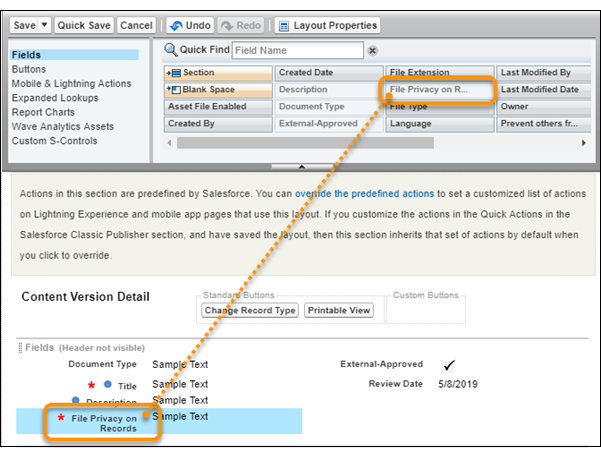
 Tip Though you can place the option anywhere in the Fields section, consider placing it after Description.
To see your result, from the Files tab, go to the Files page and edit a file’s
details.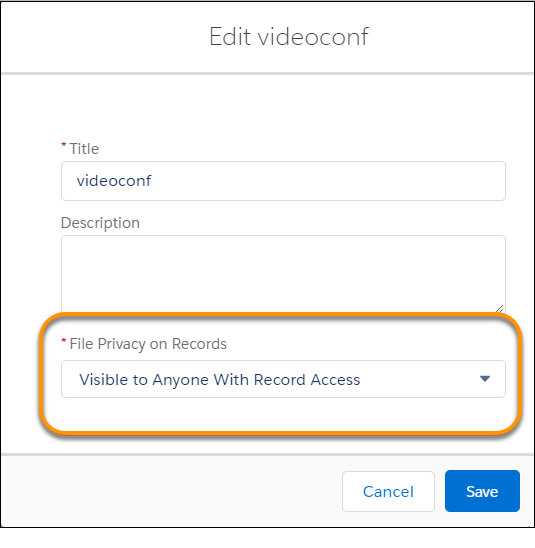
Note When you click Edit File Details from
Related Lists, the File Privacy on Records field isn't visible.