
Streamline package creation and the installation experience for Data 360 objects by wrapping together the metadata and relationships into a standard data kit. Use a Developer Edition org that supports managed packages to create and publish a standard data kit. Use a DevOps data kit to migrate metadata across orgs.
Required Editions
| Available in: All Editions supported by Data 360. See Data 360 edition availability. |
| User Permission Set Needed | |
|---|---|
| To create a data kit: |
Permission set:
|
Step 1: Create a Standard Data Kit
Use this process to create a standard data kit for a first-generation managed package. For packaging Data 360 in a second-generation managed package using a data kit, see Workflow for Data 360 Second-Generation Managed Packages.
- In your Developer Edition org, go to Data Cloud Setup.
- Under Developer Tools, click Data Kits.
- Click New.
- Name the data kit and add an optional description, such as what it contains.
- Save your changes.
Step 2: Add Data 360 Features to a Data Kit
-
Add one or more of the Data 360 features by clicking Add in
the appropriate section, then configure the data kit details.
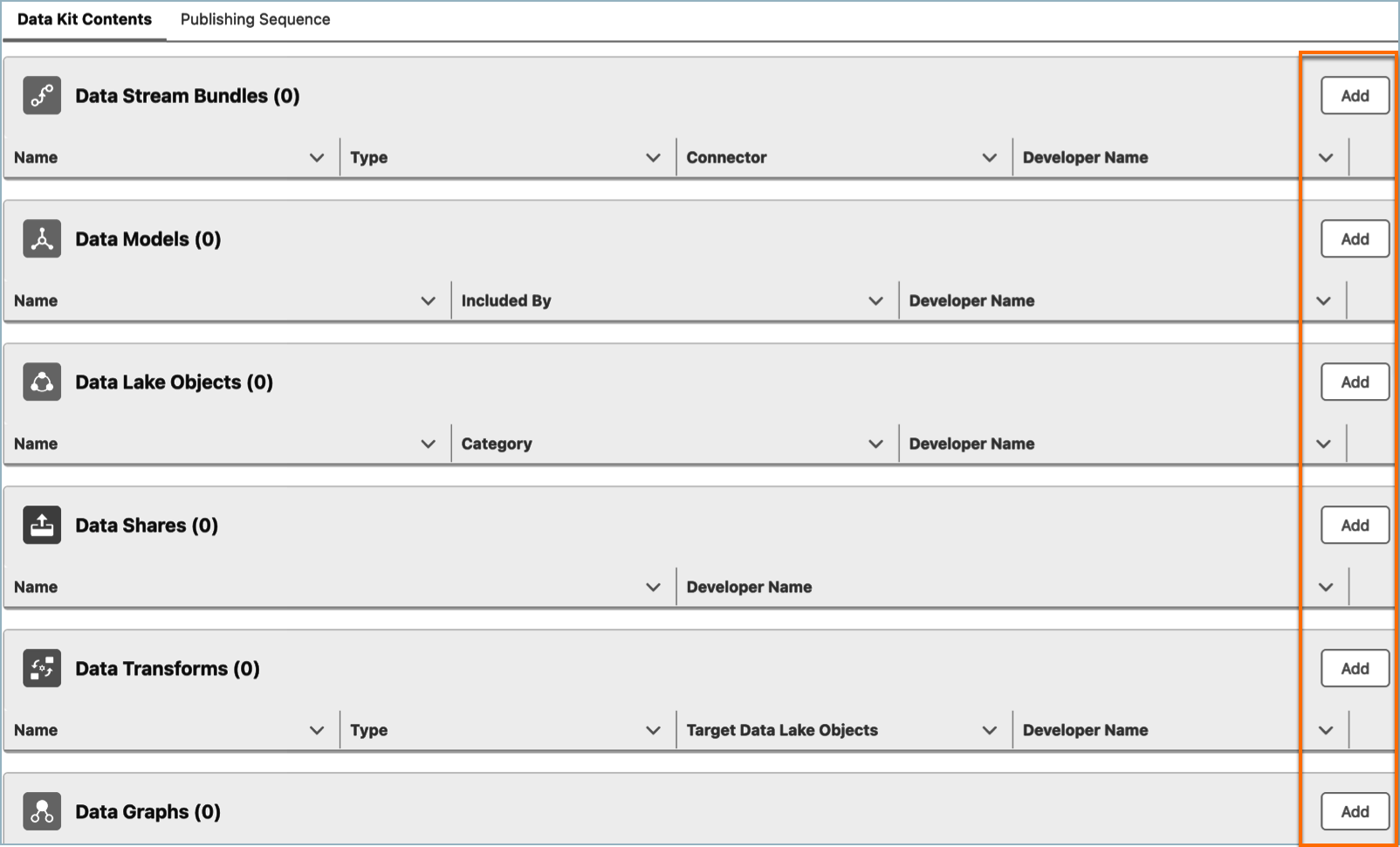
To find out which Data 360 features are packageable, see Data 360 Extensibility Readiness Matrix.
- Save your changes.
Step 3: Publish a Data Kit
-
To review the auto-publishing sequence of the components, click Publishing
Sequence.
The system publishes components based on their creation dates. When there are dependencies between components, clearly define the sequence order. For instance, if segments rely on calculated insights, place the calculated insights before the segments. This ensures all necessary data is available and up-to-date when the segments are published.
- Click Publish.