
Create a column that displays the current date and time in a specified format. This transformation works without interacting with any other columns.
- In a Transform node of a batch data transform select the Formula button (
 ) in
the Transform toolbar.
) in
the Transform toolbar. - Select Now.
- Select the date format.
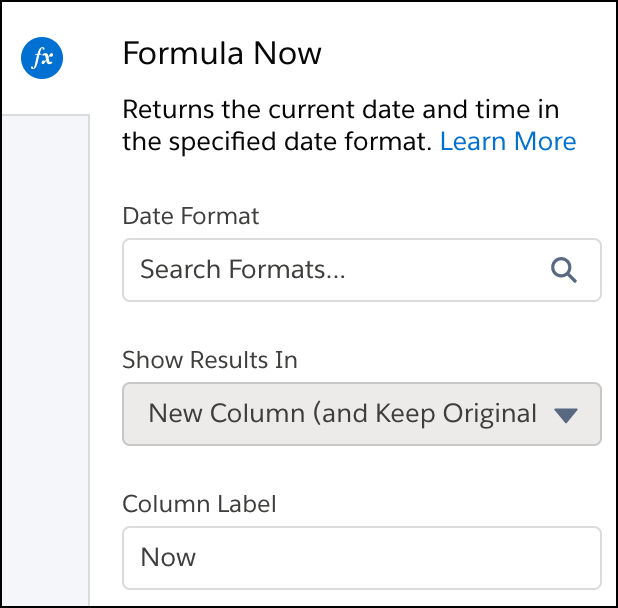
- Optionally, change the label of the column that stores the Now data in the Column Label field.
- To add the transformation to the Transform node, click Apply. The
Preview tab shows the new Now column.

- To view the canvas area, click the Collapse button (
 ).
).
The Now option uses the date and time when the batch data transform last ran, based on the UTC timezone.