
The Log Center dashboard shows request traffic, the busiest requests, and recurring stack traces for one realm and instance over a selected time range.
Log Center opens on a landing dashboard that brings key operational signals together in one place. Use it to understand traffic patterns, identify your busiest requests, and spot recurring errors without starting from a log search.
Use the realm selector in the Log Center header to choose the realm to review. Then select an instance and a time range at the top of the dashboard. The dashboard covers one realm at a time, so the results stay focused on the system that you are investigating.

Dashboard Sections
The dashboard is organized into three sections.
- Traffic: Request volume, active sessions, response time, system workload, and orders.
- Requests: The requests that are most active in the selected period, including call volume, duration, and errors.
- Top Stack Traces: The stack traces that occur most often, so you can focus on repeated application failures.
Traffic
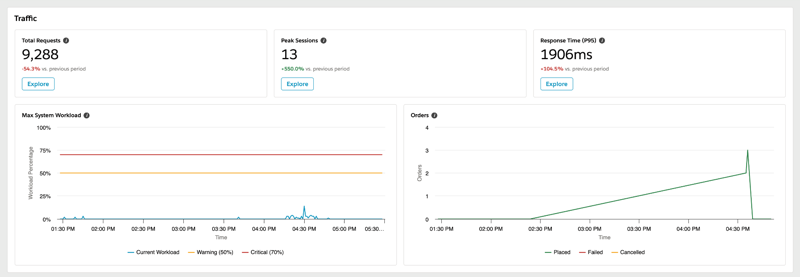
The Traffic section shows how the selected instance is performing over the chosen time range.
The summary cards show these metrics.
- Total Requests: The total number of platform requests during the selected time range.
- Peak Sessions: The highest number of active sessions per minute in the selected time range. This count includes Storefront, OCAPI, Business Manager, and Job sessions.
- Response Time (P95): The highest 95th-percentile response time in the selected time range. P95 is the response time at or below which 95% of requests completed.
The charts add operational context.
- Max System Workload shows CPU and memory utilization, so you can recognize periods of higher system demand.
- Orders shows placed, failed, and canceled orders per minute across your sites.
Select Explore on a summary card to open the related dashboard detail for that metric.
Requests
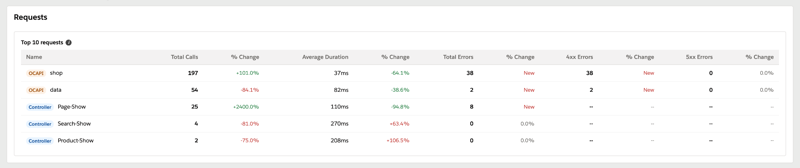
The Requests section identifies the request types that drive activity on the selected instance.
The Top 10 requests table combines controllers, OCAPI categories, and SCAPI API families, and then ranks them by total calls in the selected time range. For each request, review these values.
- Total Calls and the change from the equivalent previous period.
- Average Duration and the change from the equivalent previous period.
- Total Errors, including separate 4xx and 5xx error counts and their changes from the equivalent previous period.
Use this view to find unexpected increases in request volume, slower request paths, or requests with a growing number of client or server errors.
Top Stack Traces
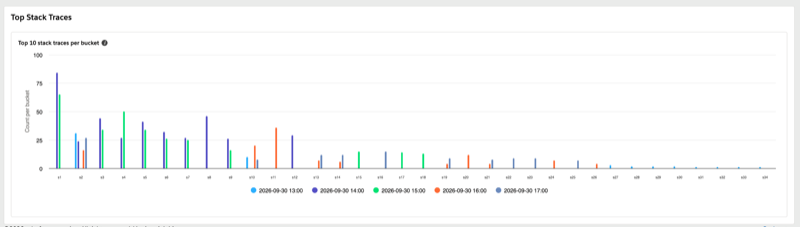
The Top Stack Traces section focuses on repeated application errors. It shows the ten most frequent stack-trace IDs for each time bucket in the selected range, and then ranks them by total occurrences.
Use this section to:
- Identify stack traces that recur often or increase over time.
- Compare how the most common failures occur across the selected time range.
- Select a stack-trace label to inspect the message associated with that stack trace.
This view is a starting point for error investigation. After you identify a recurring stack trace, use the associated message and Log Center search to investigate the underlying requests and logs.
Tips for Using the Dashboard
- Start with a focused time range when you investigate a recent issue. Then expand the range to see whether the behavior recurs.
- Review Traffic first to understand overall activity. Then use Requests and Top Stack Traces to narrow the investigation.
- Compare the change values in the Requests table with the equivalent previous period to distinguish normal variation from a meaningful increase.
- Select the realm and instance to investigate before you draw conclusions from the dashboard data.