
A campaign acts as a wrapper for your promotions and qualifiers. When you create a campaign, define a schedule and qualifiers for an entire group of promotions or slot configurations.
All experiences within the campaign, such as promotions, slot configurations, and sorting rules, inherit the details in the campaign. You can override or refine all inherited details, except for the campaign enabled setting.

Tip We recommend including promotions with similar schedules in the same
campaign. If you have a promotion that doesn't share characteristics with any other
promotion, consider putting it in a separate campaign.
-
Click App Launcher
 , and then select .
- Click New.
- Specify the general details.
-
Specify the campaign dates or select No Start Date or
No End Date.
If you don't schedule any dates, the campaign runs indefinitely.
- To refine who can use the campaign and how they can trigger it, create and assign qualifiers.
-
To configure a specific version of a campaign that you want to show to a particular
audience, create and assign experiences.
In the Experiences section, you can add a promotion, slot configuration, and sorting rules. You can create, modify, and assign all these elements of an experience.
- If you add a promotion to your experiences, change promotion exclusivity from within the experience.
- If you add a slot configuration, modify the schedule and assign customer groups.
- If you add a sorting rule, select which categories the sorting rule affects.
-
When you're satisfied with your campaign configuration, enable it. You can also
enable a campaign from the list on the main Campaign page.
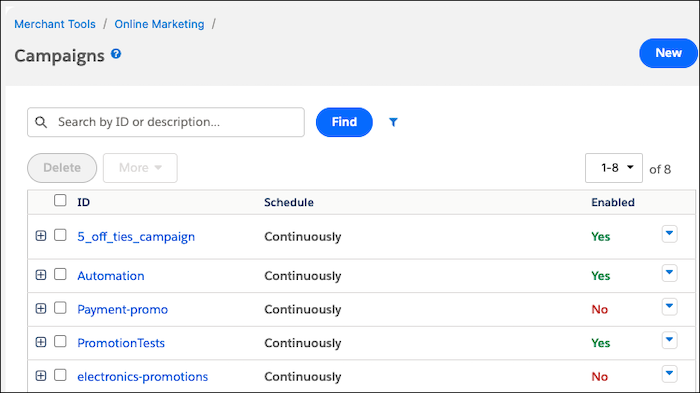 When a campaign is disabled, all the promotions within it are also disabled.