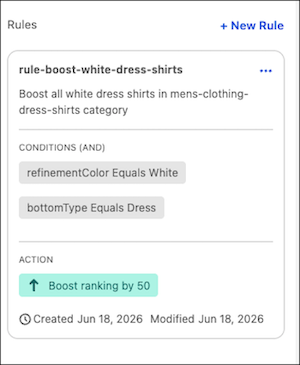
Use the Merchant Agent to create boost and bury rules with natural language prompts. Agentic rule creation is available only for categories. Create search term boost and bury rules manually.
- In Business Manager, select .
- Select Category and enter the category you want to modify.
-
In the right-hand panel, click Curate.
The Curate page opens.
-
In the Action field, select Boost and
Bury, and enter a description of what product you want to boost or
bury.
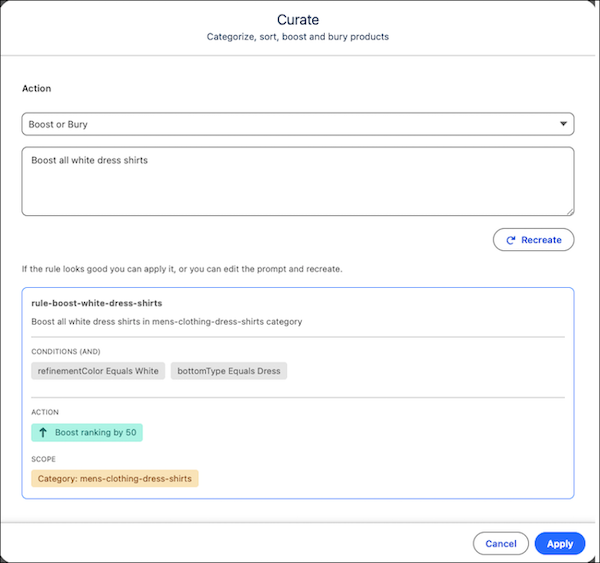
For example, in the category Mens > Clothing > Dress Shirts, enter Boost all white dress shirts.
-
Click Create.
The rule details appear on the page.
-
Review the rule. If the rule meets your requirements, click
Apply.
The rule appears in the right-side panel of the main Visual Merchandising workspace.