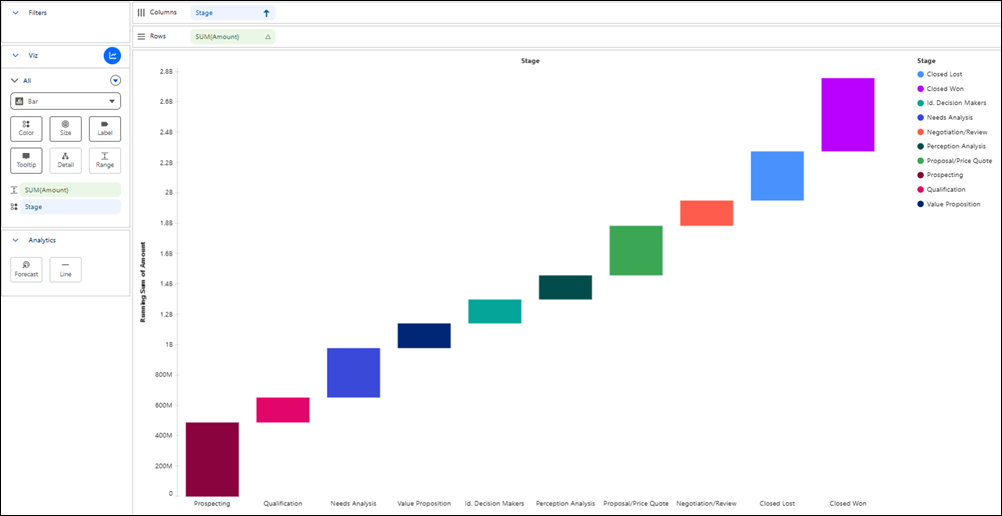
Visualize how a key value evolves over time or across categories by showing the
cumulative effect of both positive and negative changes in a waterfall chart. This chart type,
based on a bar chart, is ideal for highlighting the net effect each individual value has on the
final value. For example, compare pipeline value across opportunity stages to see how each stage contributes to total potential revenue.
Required Editions
| User Permissions Needed |
| To create Tableau Next visualizations: |
Tableau Unmetered Platform Analyst or Tableau Next Platform Analyst permission set |
-
From the Show Me pane in your visualization, click the
 thumbnail.
The layout changes to Waterfall, and the pane shows the required fields and supported field
encodings for the chart type.
-
From the Data pane, drag the dimension used to analyze the measure onto
Columns. For the chart in this example, select
Stage.
-
Drag the measure that you want to visualize, such as
Amount, onto Rows and
Range.
-
To arrange the stages in sequence:
-
Use an order field, such as Stage Order.
-
From the Stage field’s context menu on
Columns, click Sort.
-
Select Stage Order as the field,
Minimum as the aggregation, and
Ascending as the sort order.
-
Optionally, to distinguish each stage by color, drag
Stage onto Color.
-
Optionally, to show the value of each bar, drag
Amount onto Label.
-
You can further customize the visualization with tooltips or other available mark
properties to make the chart easier to interpret.
-
Save your visualization.